
Admin Portal Site
rev.1.8
Recommended System Requirements for the Admin Portal Access:
| OS | Windows 10 and 11 |
| Internet Browser | Google Chrome, Microsoft Edge |
The screen color indicates the current environment (staging or production).
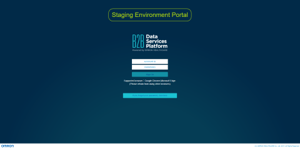
Staging environment
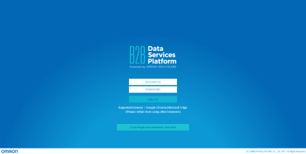
Production environment
Sign-in
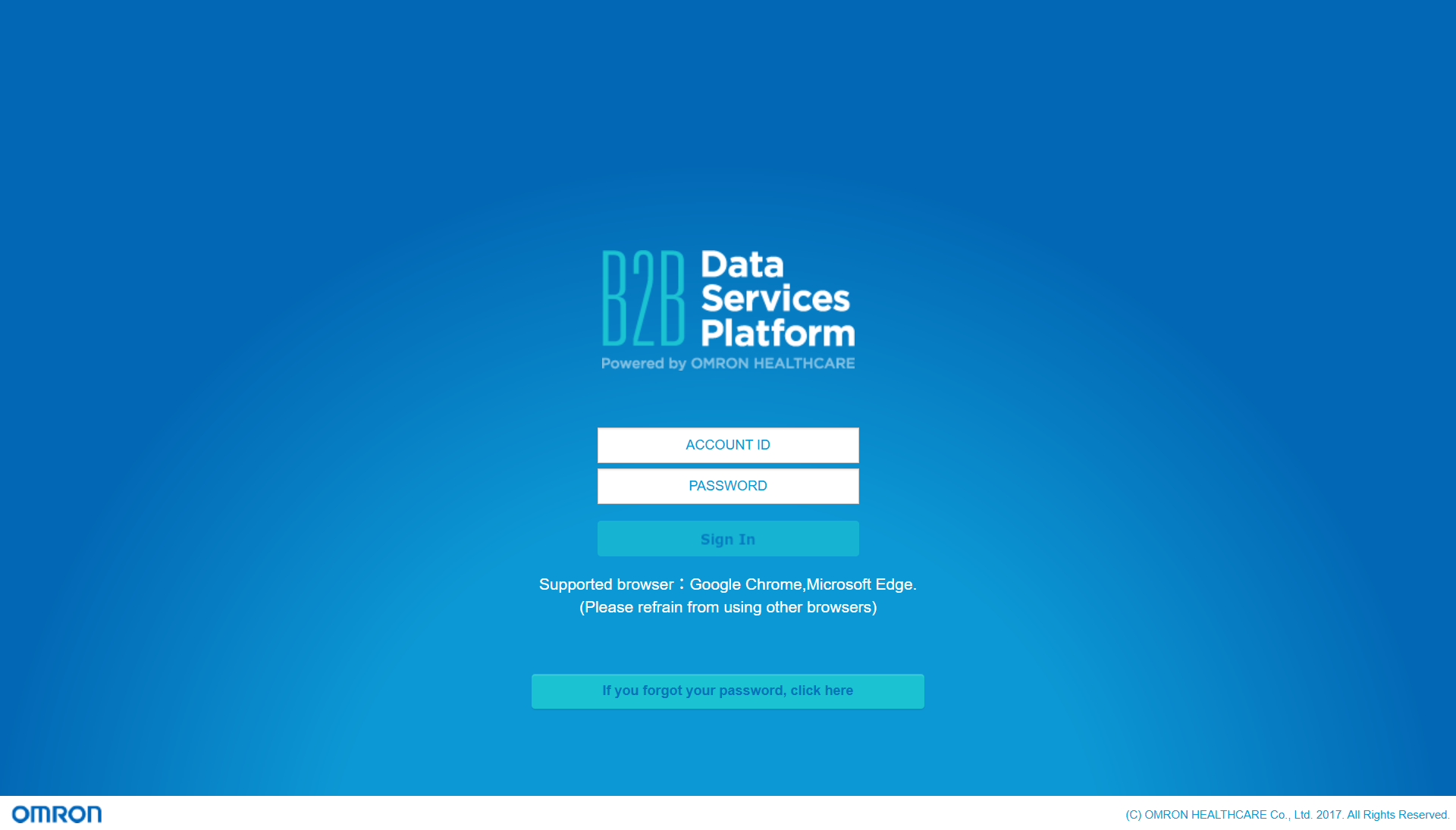
When your Data Service Platform (DSP) environment is set up, OMRON Healthcare will share the admin portal URL with you.
The portal screens shown below are based on logging in with a Partner Administrator Account. They may differ slightly when logging in with a Group Administrator Account.Multi-Factor Authentication (MFA) will be introduced in July 2026. After its implementation, the sign-in process will follow the steps below.
- Enter your Account ID and Password, then click the “Sign In” button.
- You will be redirected to the verification code entry screen.
- A verification code will be sent to your registered email address.
- Enter the verification code provided in the email, then click the “Sign In” button.
Note: The verification code is valid for 3 minutes. Please enter it within this time. - If the correct verification code is entered, you will be granted access to the management console.
If the verification code is incorrect, please start again from step 1.
To Enable Multi-Factor Authentication (MFA) (if followed by steps)
- After signing in, click the gear icon in the top-right corner of the screen.
- You can view the current account settings. To make changes, click the “Edit” button at the bottom of the screen.
- Set Multi-Factor Authentication to “Valid”, then click the “Update” button in the bottom-right corner.
Account Management
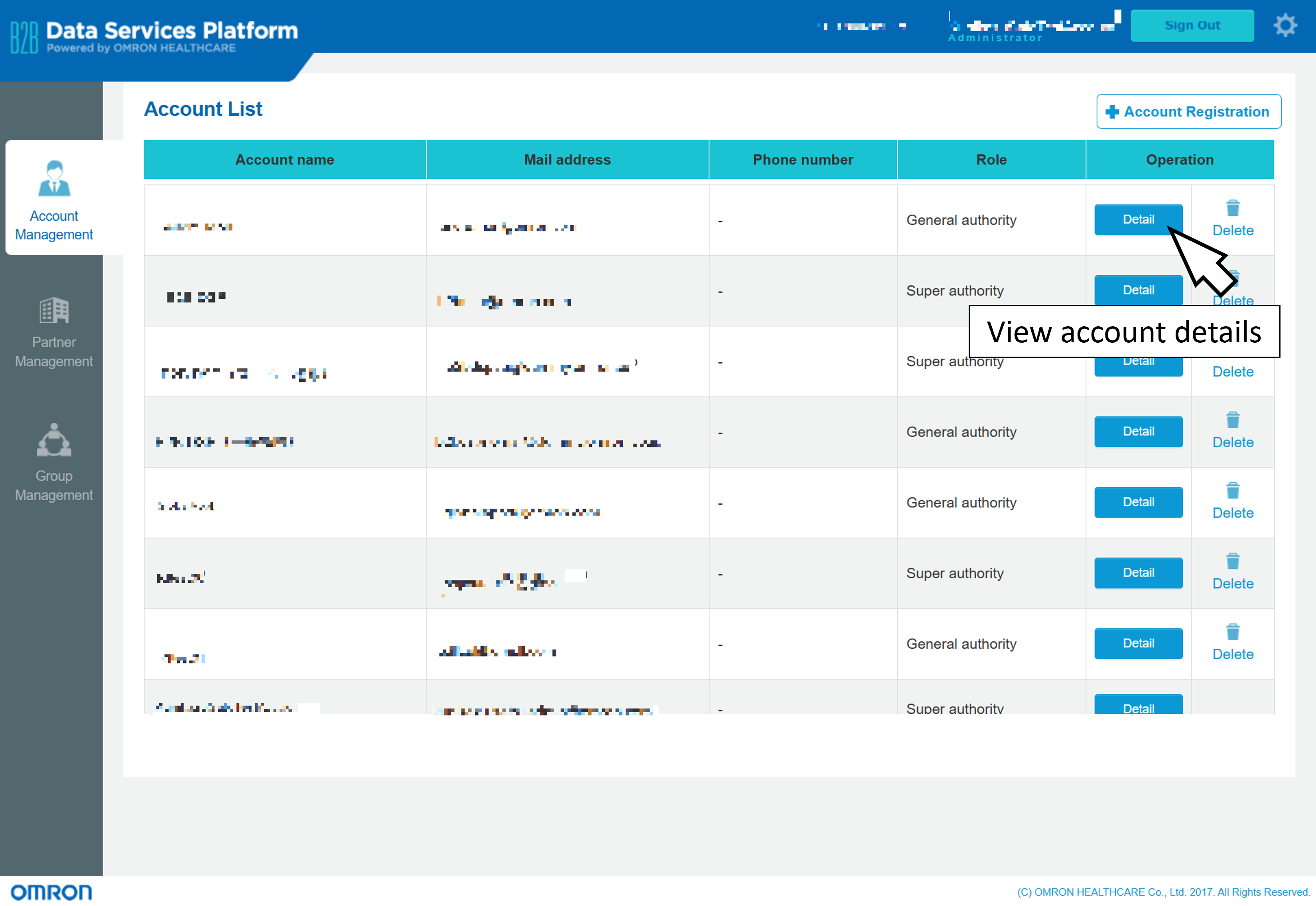
In this page, you can see the details of accounts in your DSP environment.
View Account Details
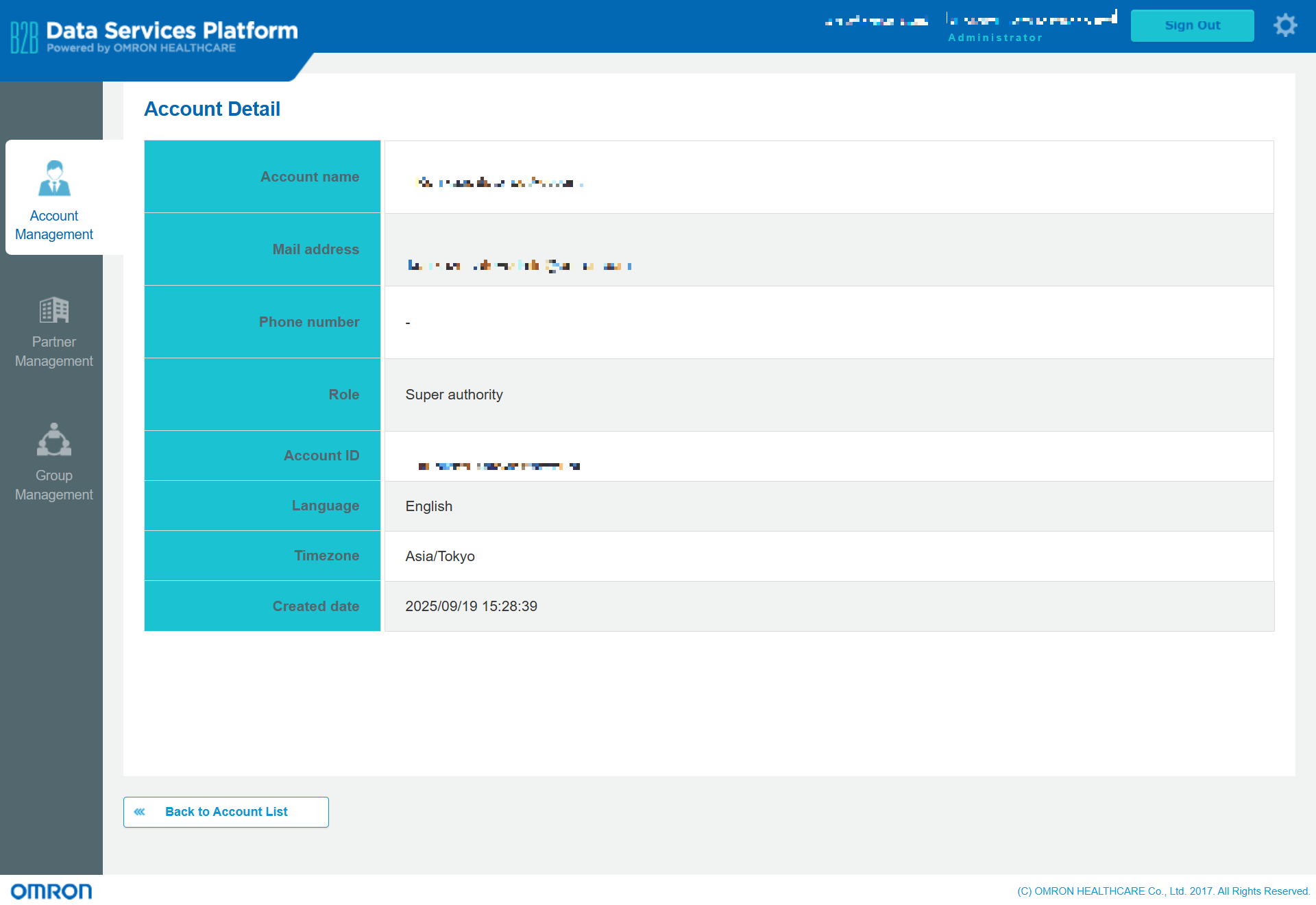
By selecting the "Detail" button, you will be able to view comprehensive information pertaining to the account.
Account Registration
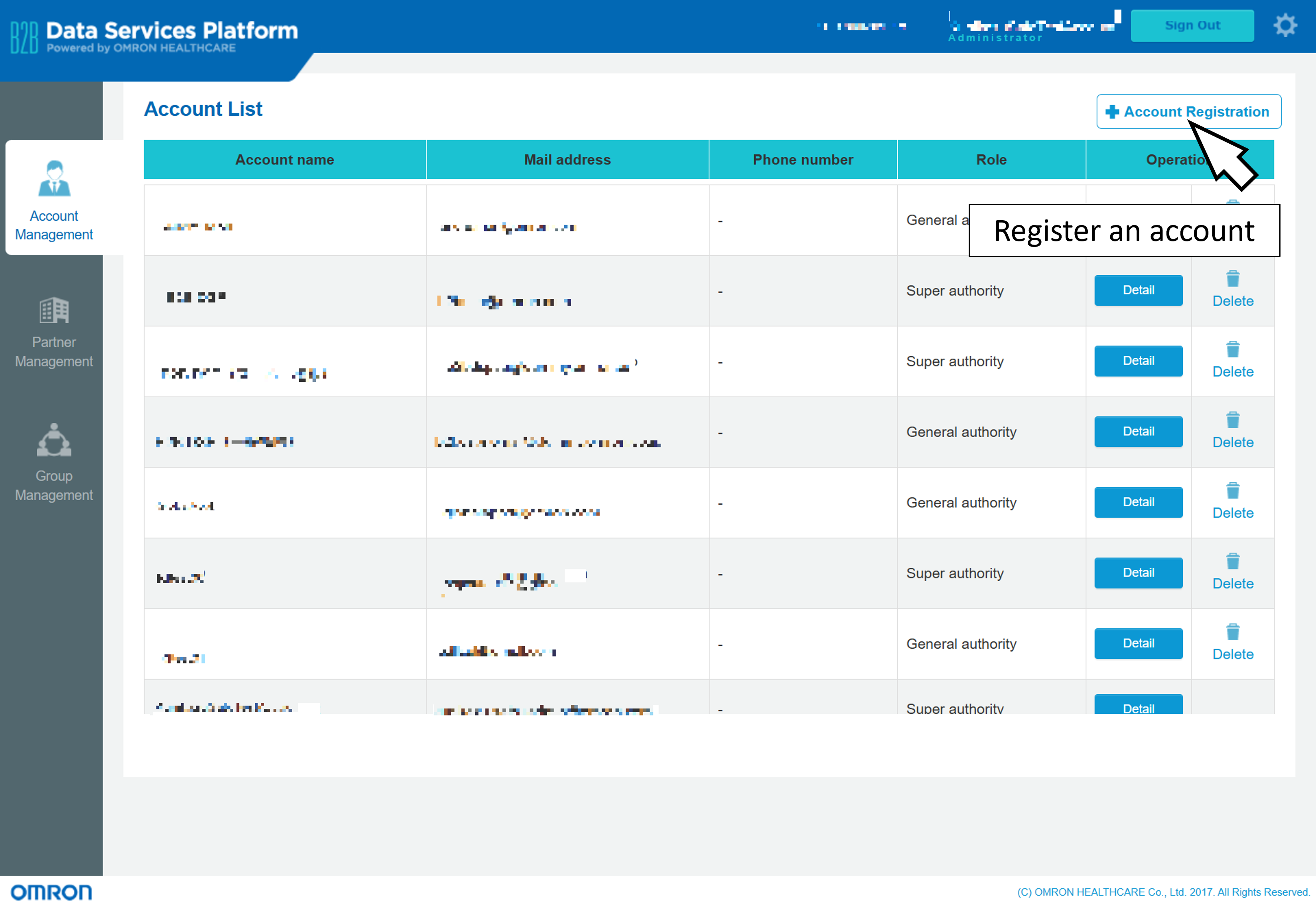
To register a new account, please click the "Account Registration" button.
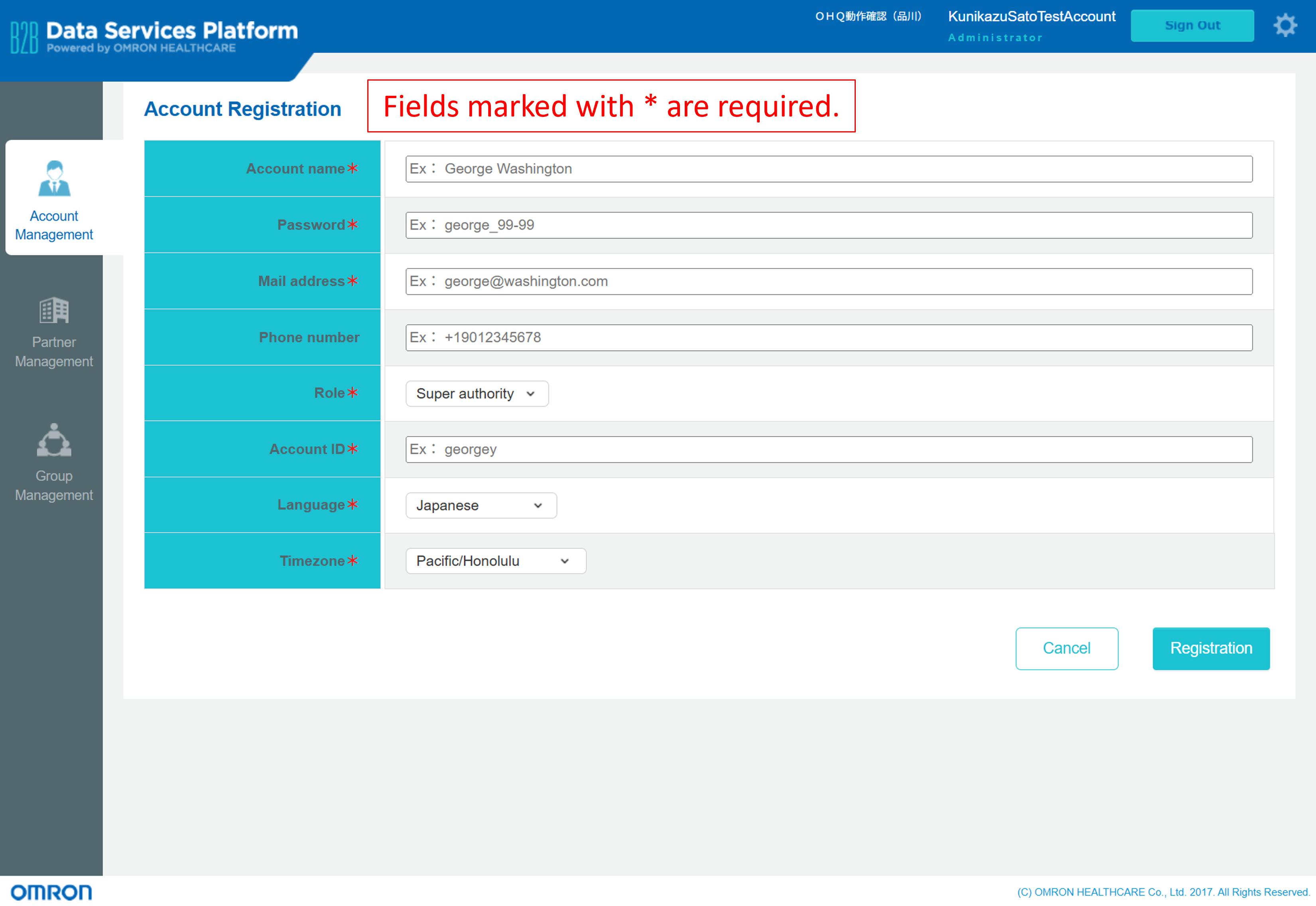
The password must be at least 8 characters and no more than 50 characters, and include at least three types of characters: uppercase letters, lowercase letters, numbers, and symbols.
Operational permissions differ by the 'Role', as outlined below.
| Super authority | General authority | |
|---|---|---|
| Register or Delete an administrator account | ✅ | |
| Register or Delete a group | ✅ | |
| Create or Delete a group system administrator account | ✅ | ✅ |
| Register or unregister an OMRON connect user in a group | ✅ | ✅ |
The 'Timezone' reflects the date and time shown in the admin portal site. Also, when vital data is exported as a CSV file, the measurement timestamps are converted to local time based on the specified the 'Timezone'.
Update Account
Registered account information can be updated as follows.
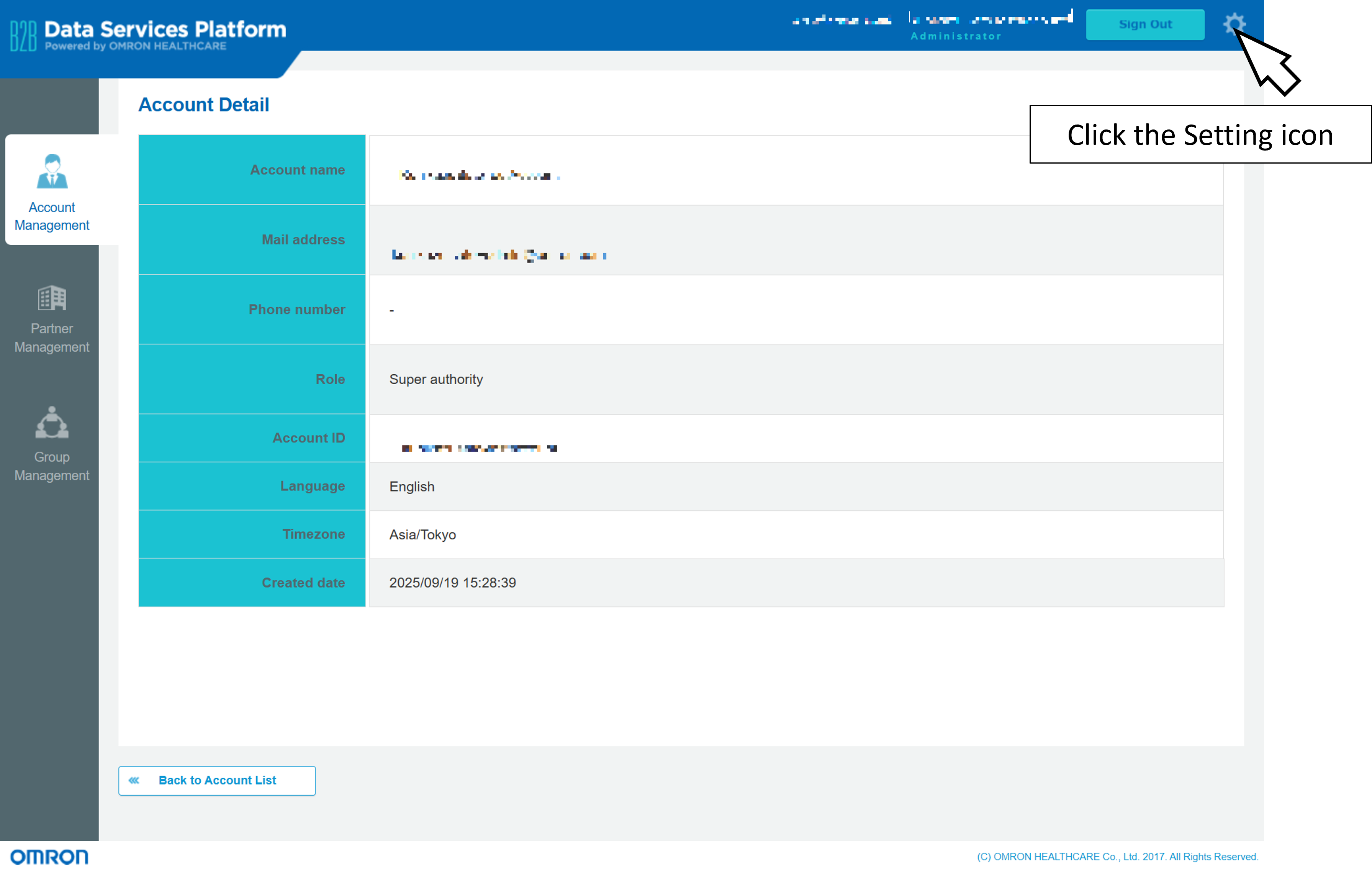
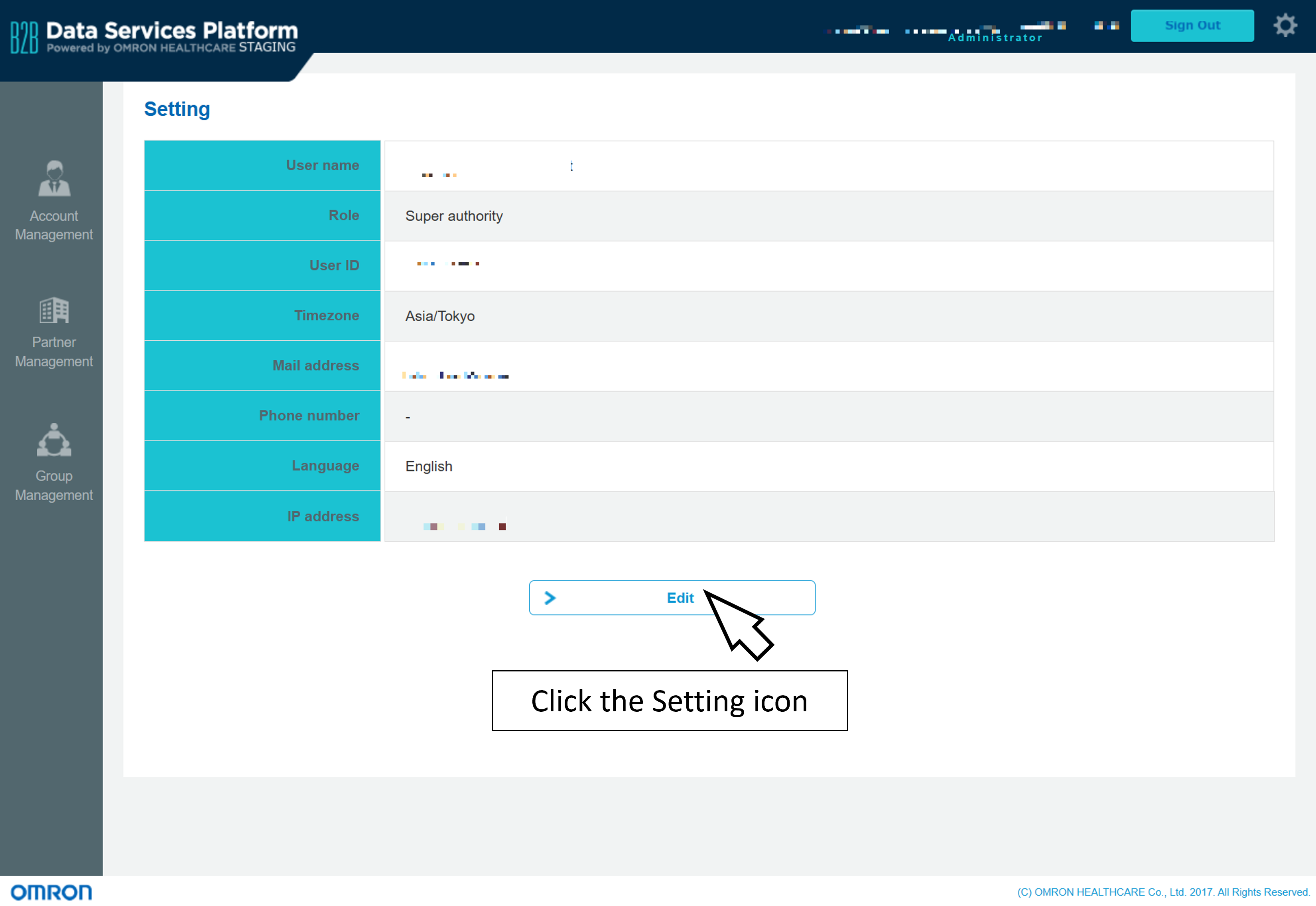
After logging in to the admin console, click the 'Settings (gear) icon' in the upper-right corner to open the Personal Settings page.
Click 'Edit' at the bottom of the page to update the items listed below.
- Use name
- Timezone
- Mail address
- Phone number
- Language
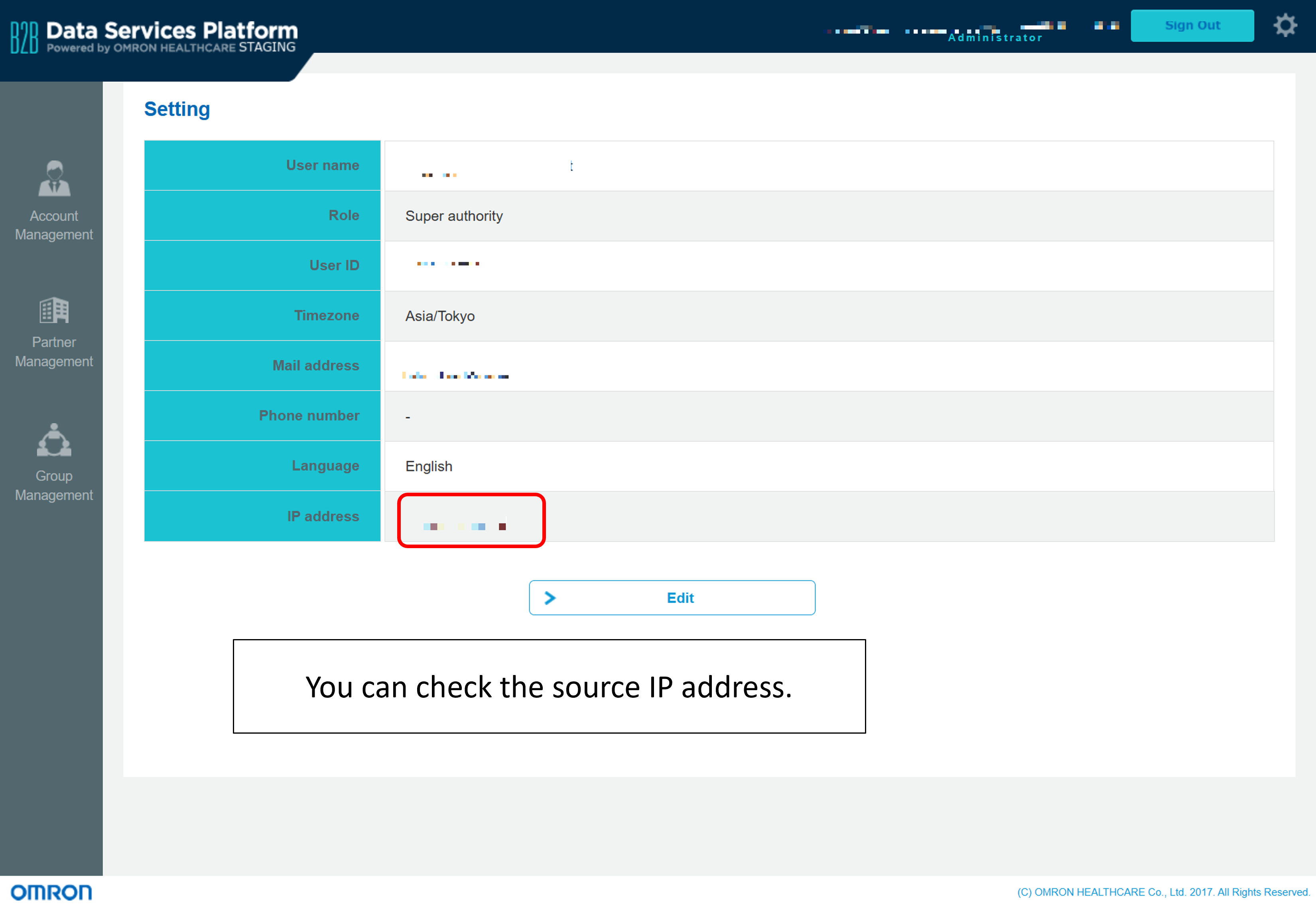
View the source IP Address
Partner Management
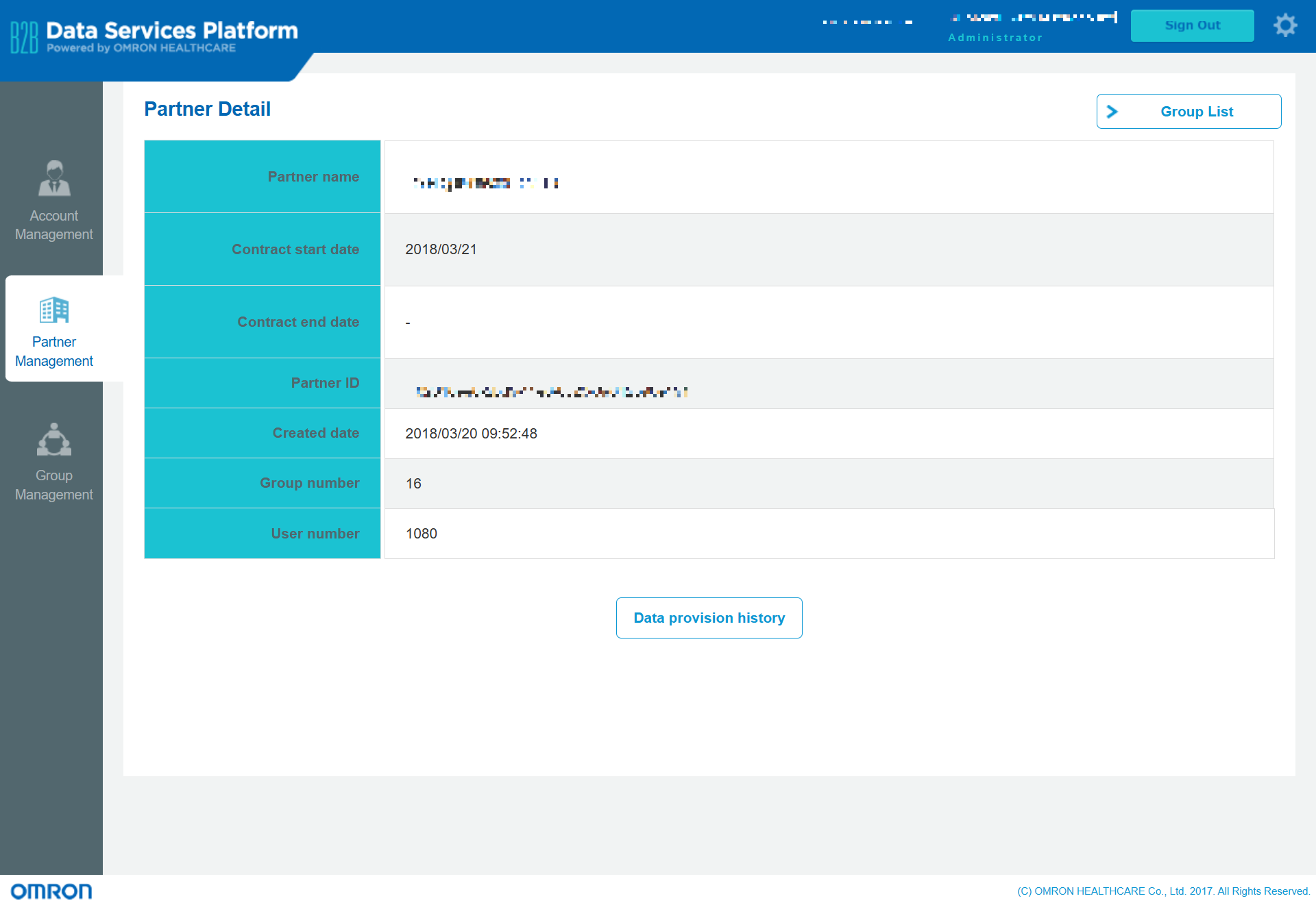
In this page, you can confirm the details of your DSP environment.
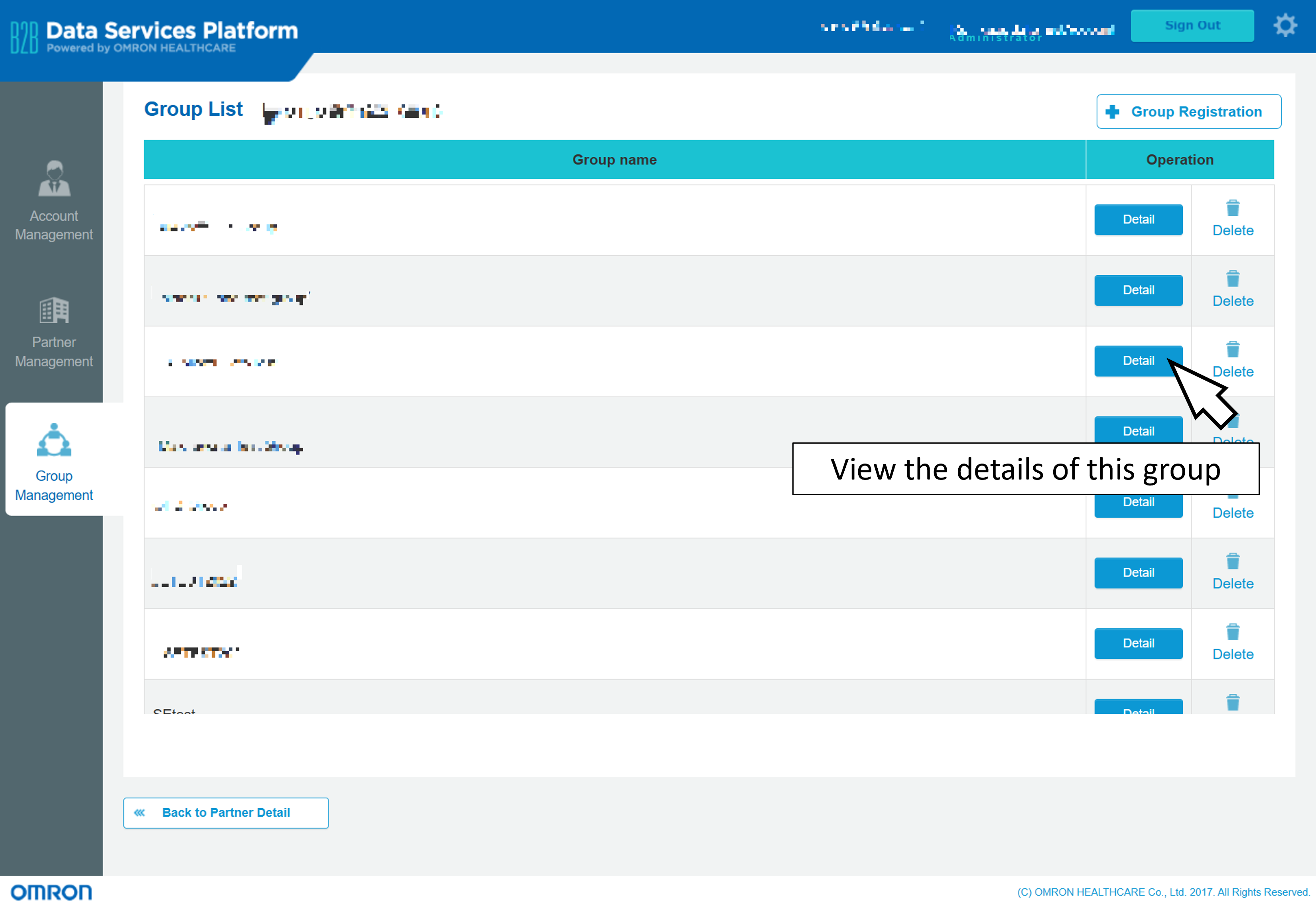
Group List
Selecting the "Group List" button will display the Group Management screen.
Group Management
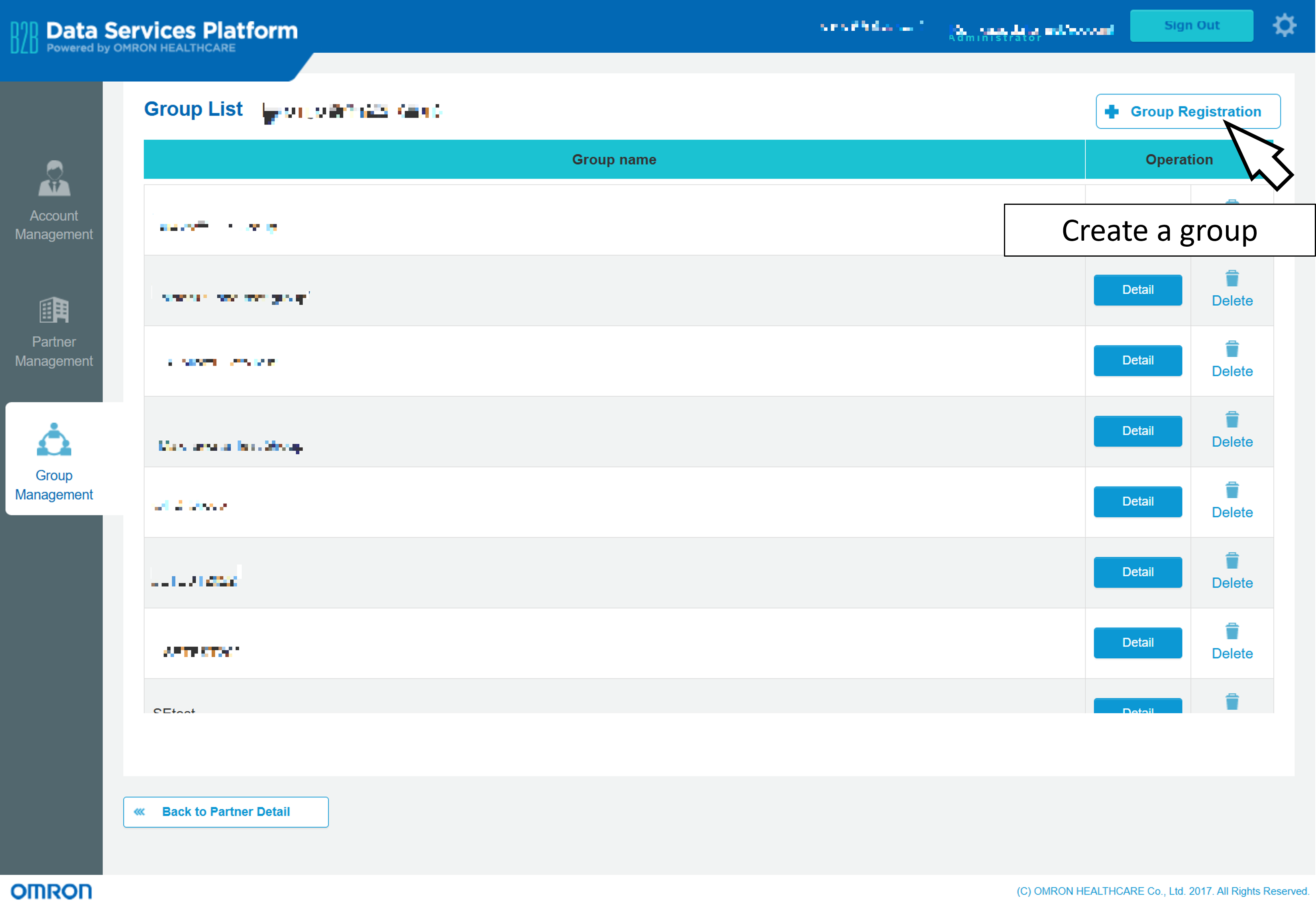
In this page, you can register a group, group administrator account and see the details of groups created in your DSP environment.
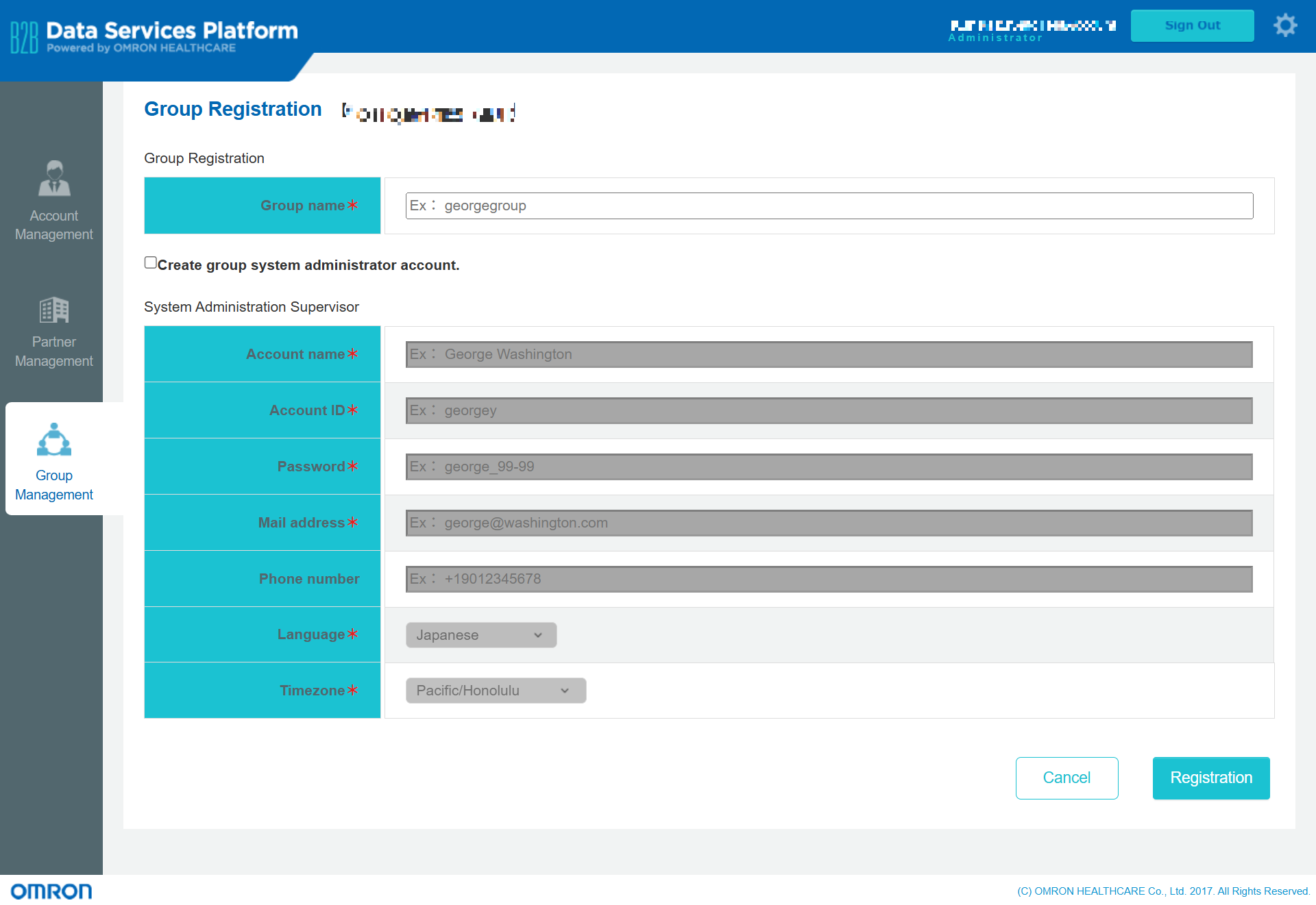
Group Registration
To create a new group, please select the "Group Registration" button.
Group Details
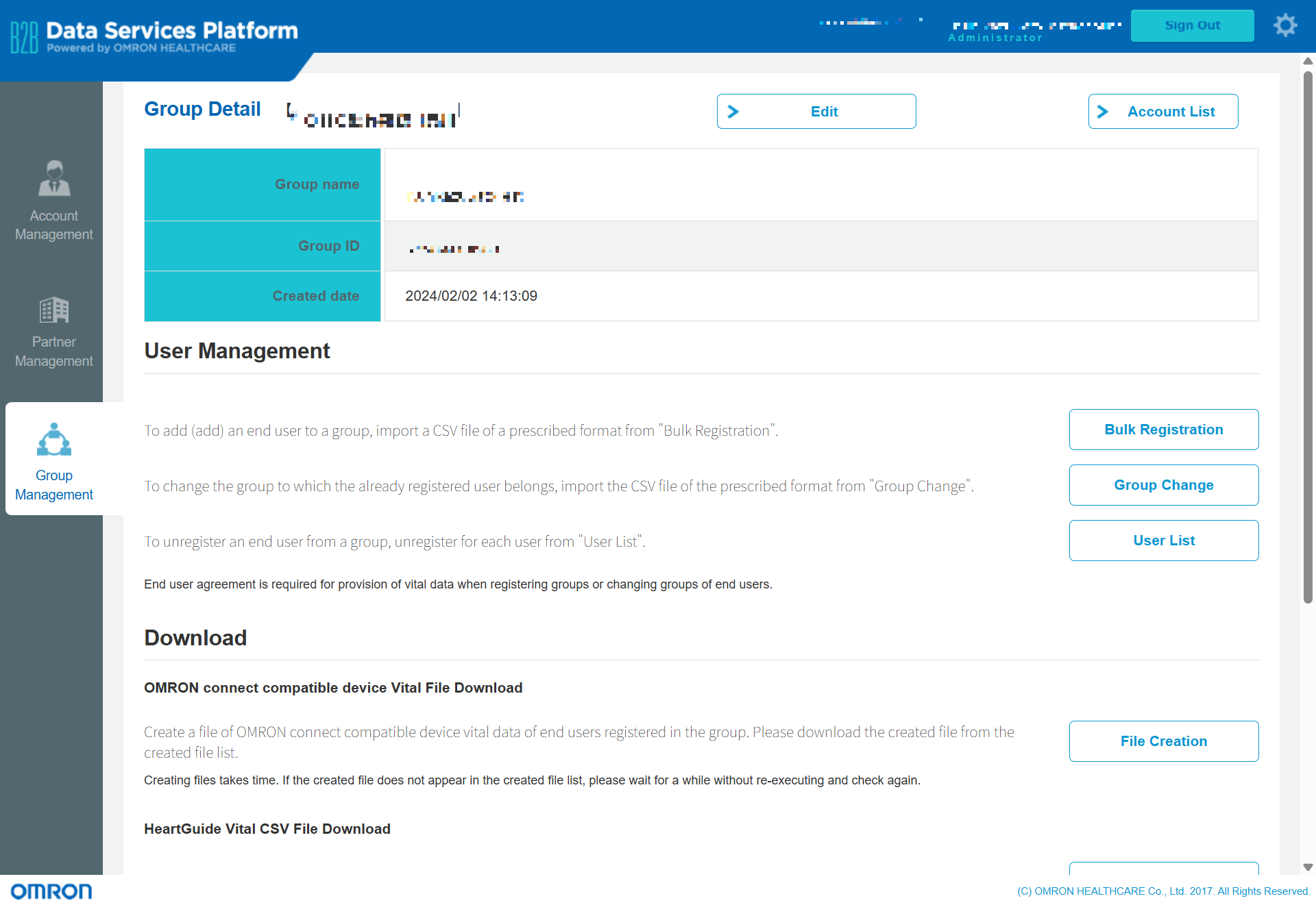
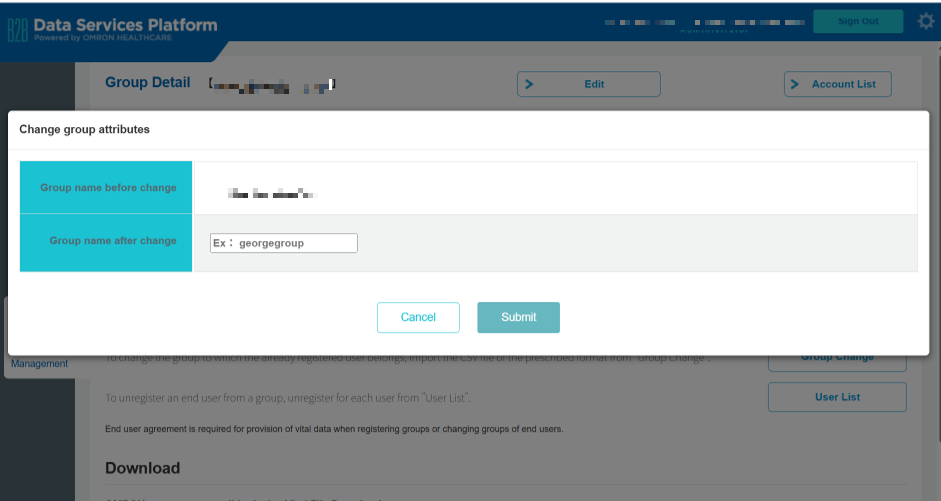
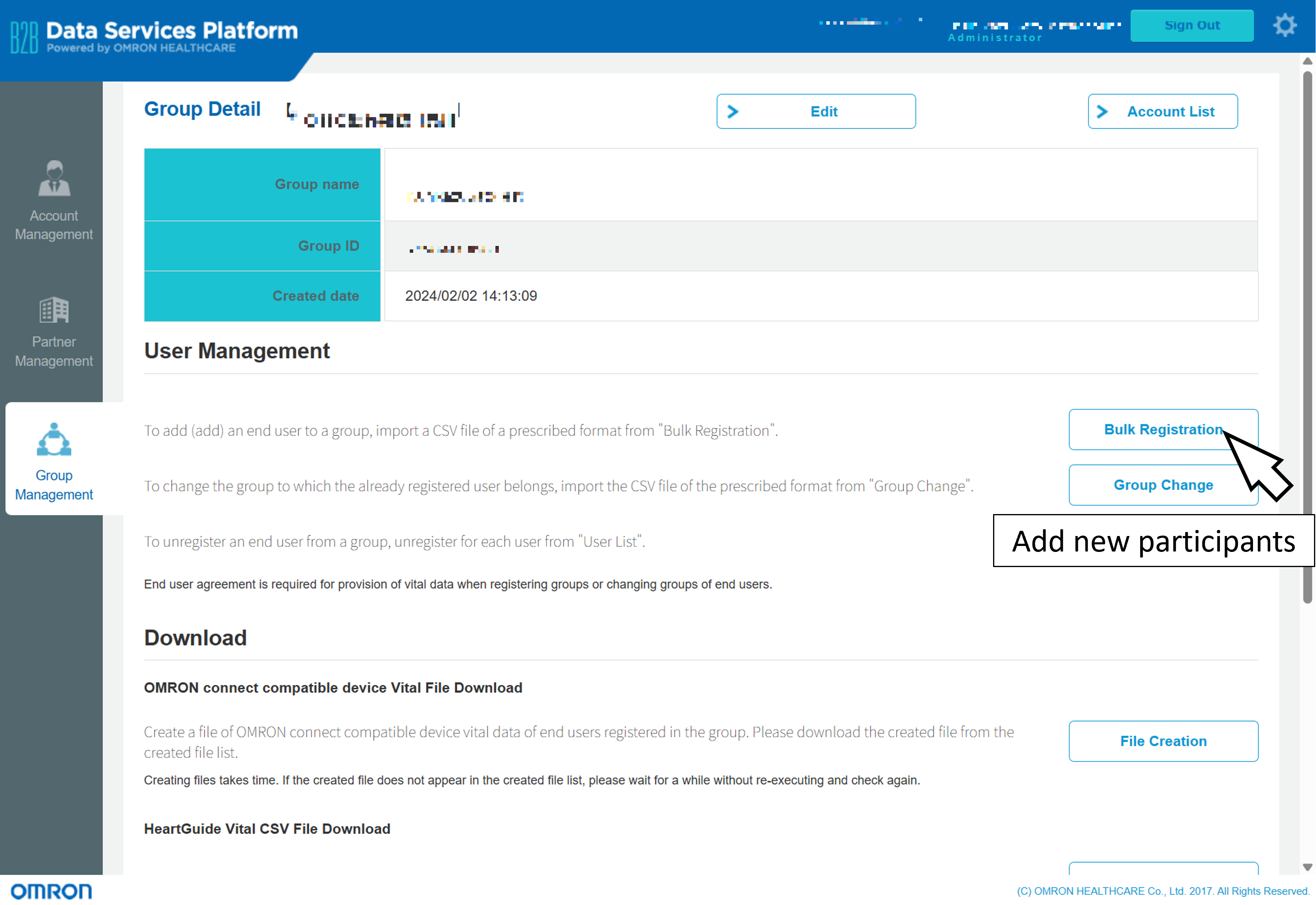
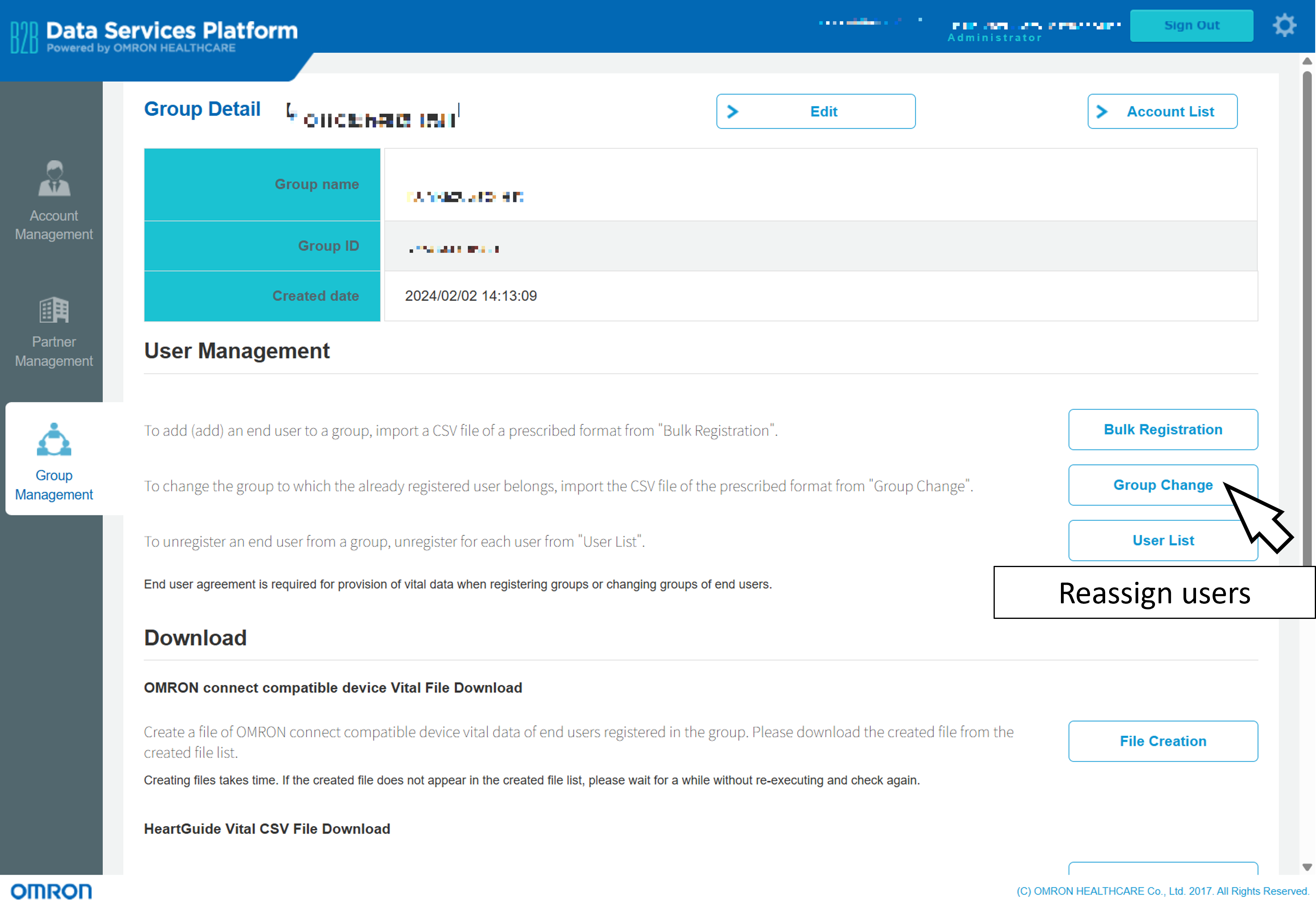
On the group details page, you can rename the group, add new participants, reassign users, view the list of registered users, and download health data in CSV format.
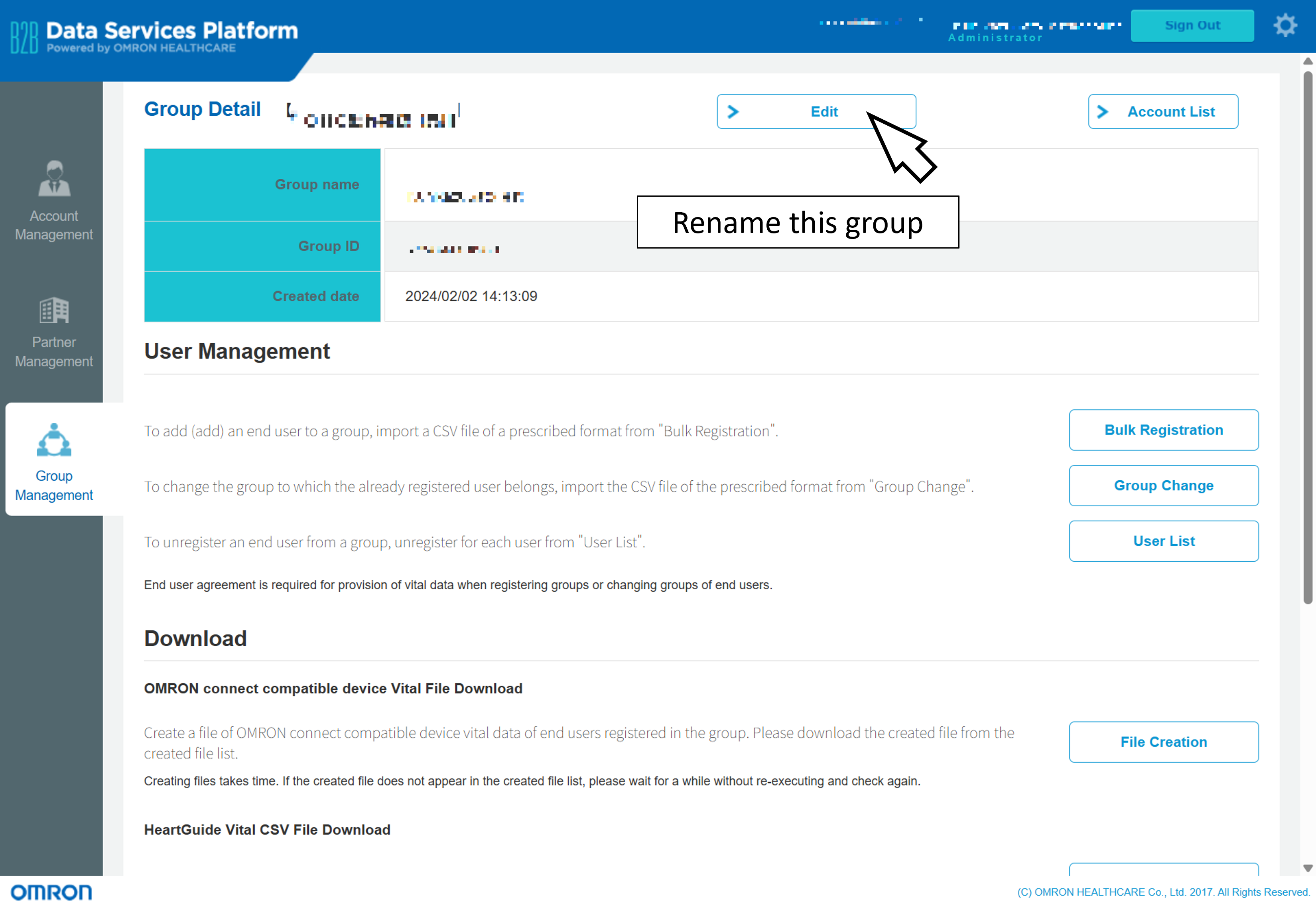
Rename the group
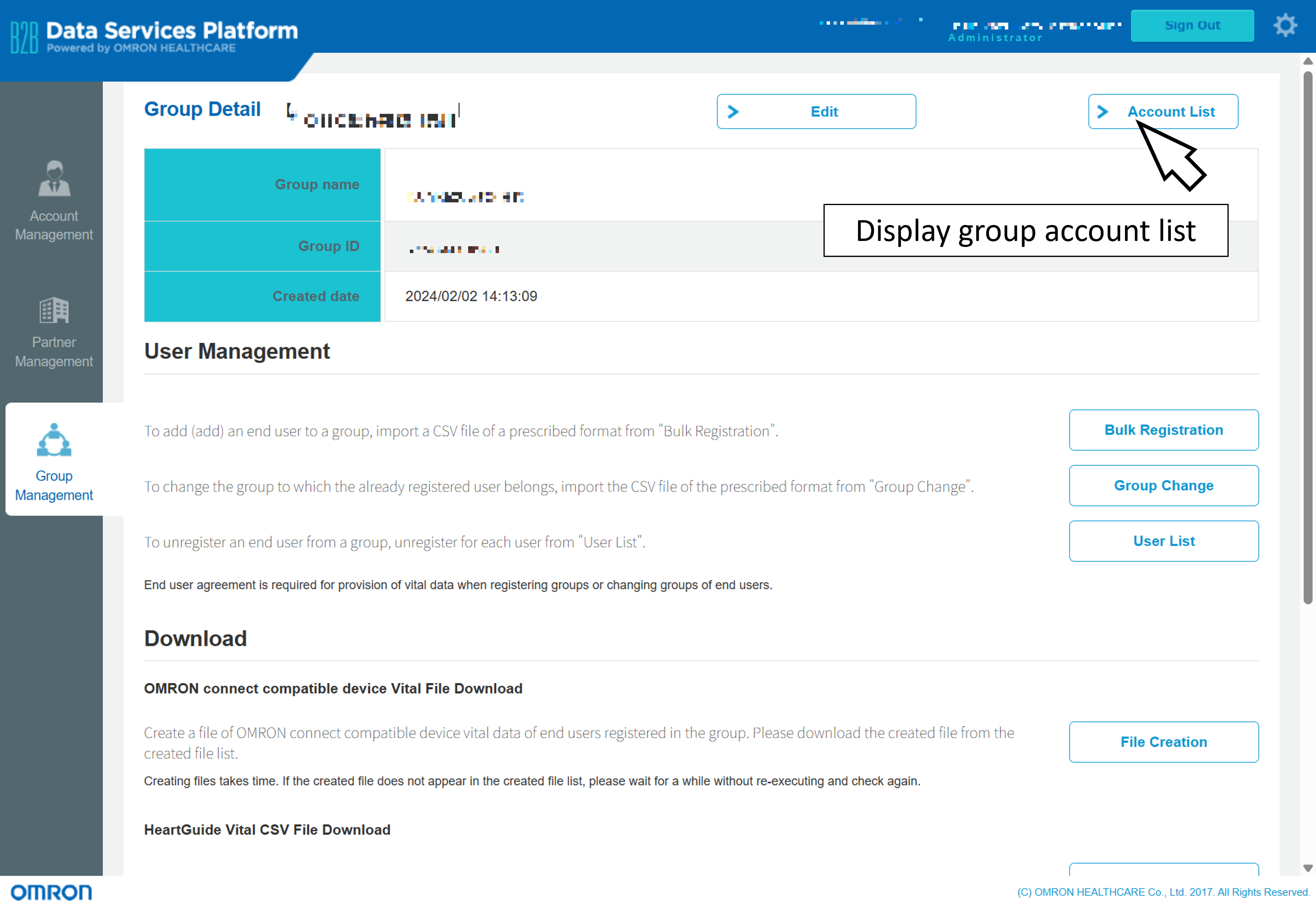
Register a group administrator account
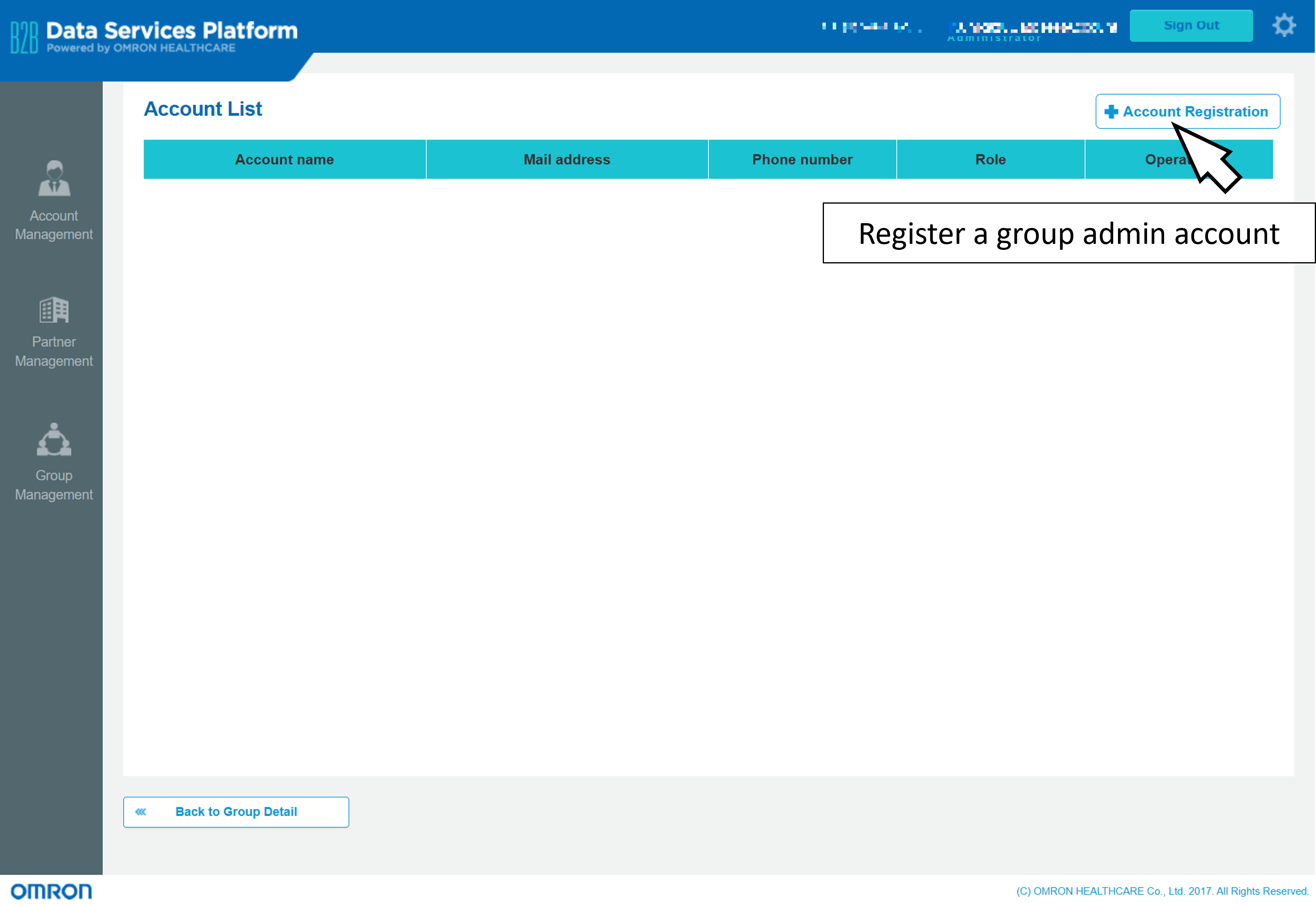
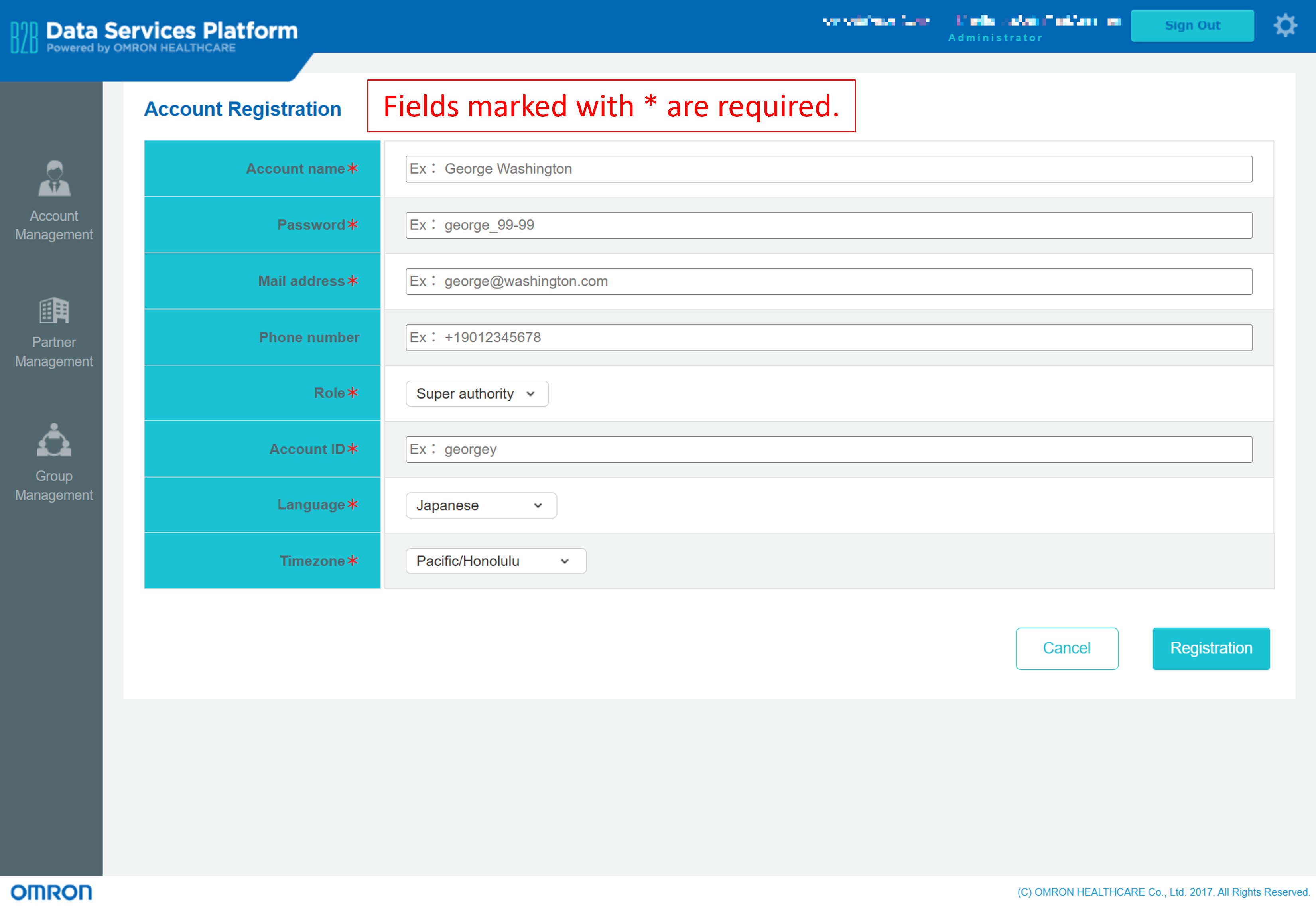
Note: The functionality of group administrator accounts may vary slightly depending on their assigned roles.
| Super authority | General authority | |
|---|---|---|
| Register / Delete a group administrator account | ✅ | |
| Add OMRON connect users (participants) | ✅ | ✅ |
| Unregister an OMRON connect user from a group | ✅ | ✅ |
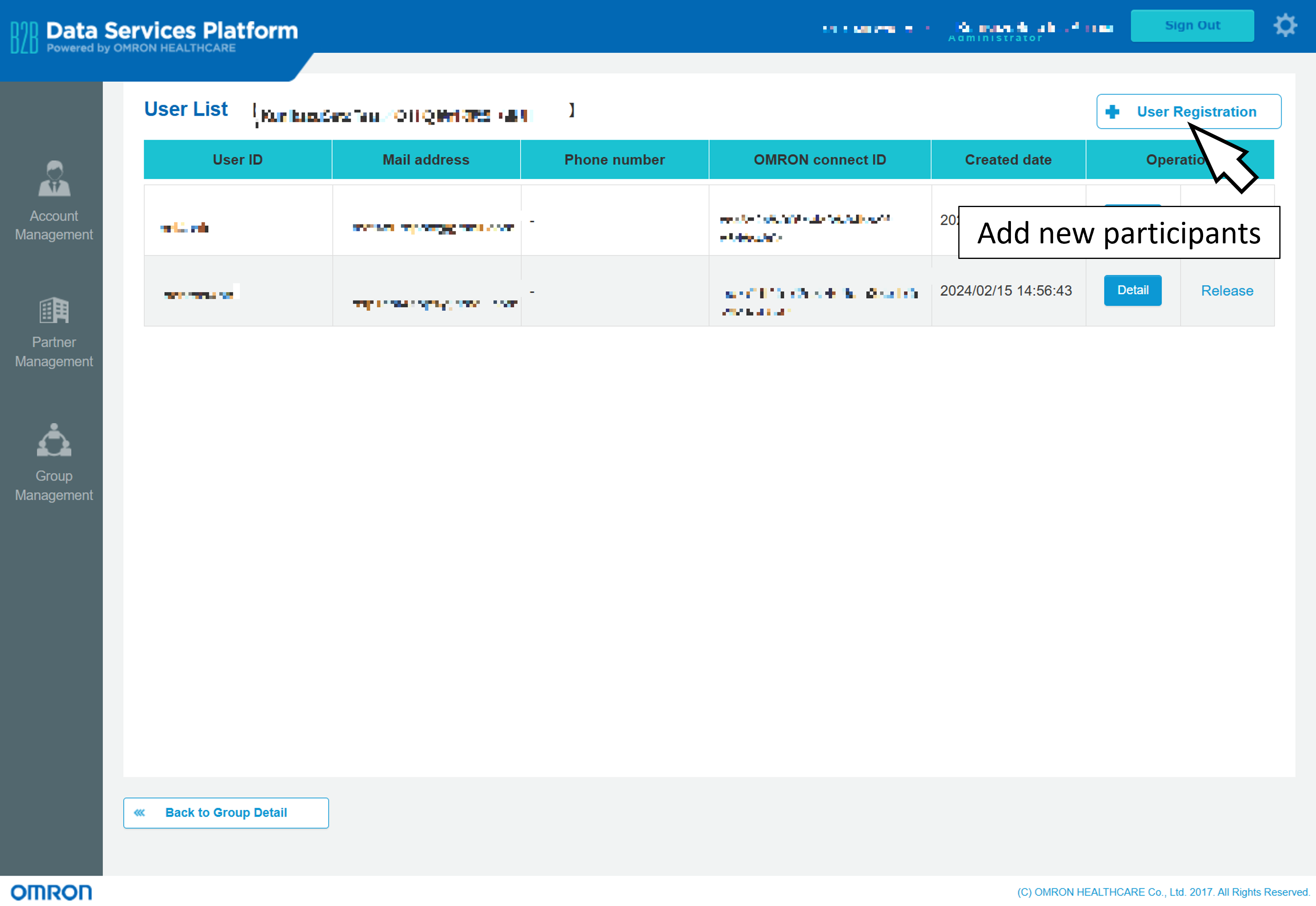
Add new participants
Users (participants) can be registered in bulk by importing a CSV file formatted according to the specified requirements. If you require a template CSV file, please contact us.
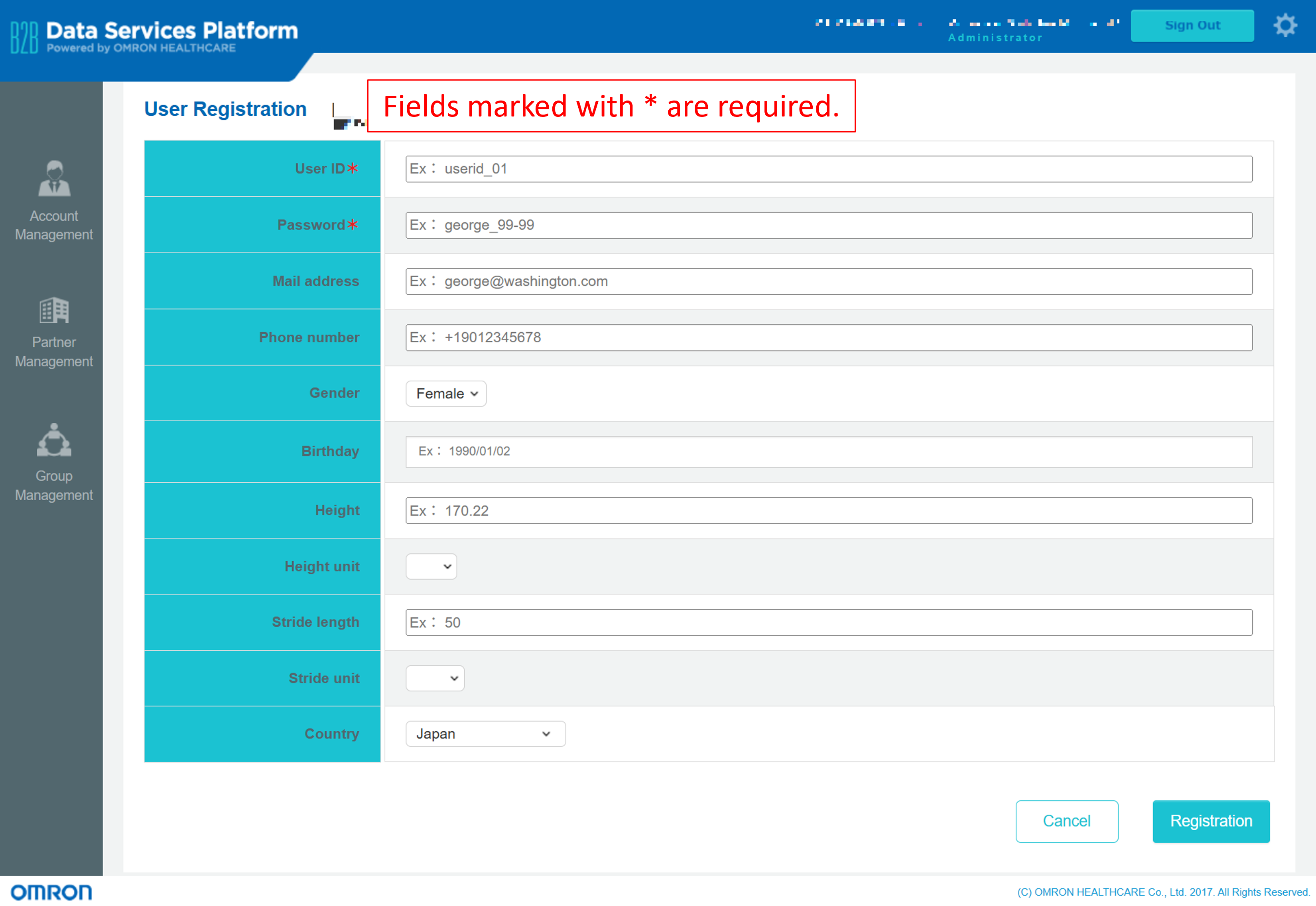
To register users individually without using a CSV file, navigate to 'User List' and select 'User Registration'.
Reassign users to another group
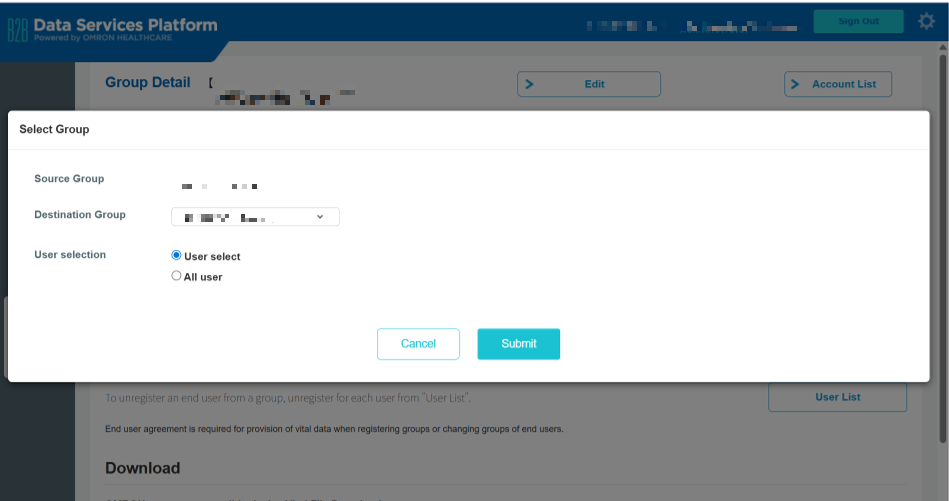
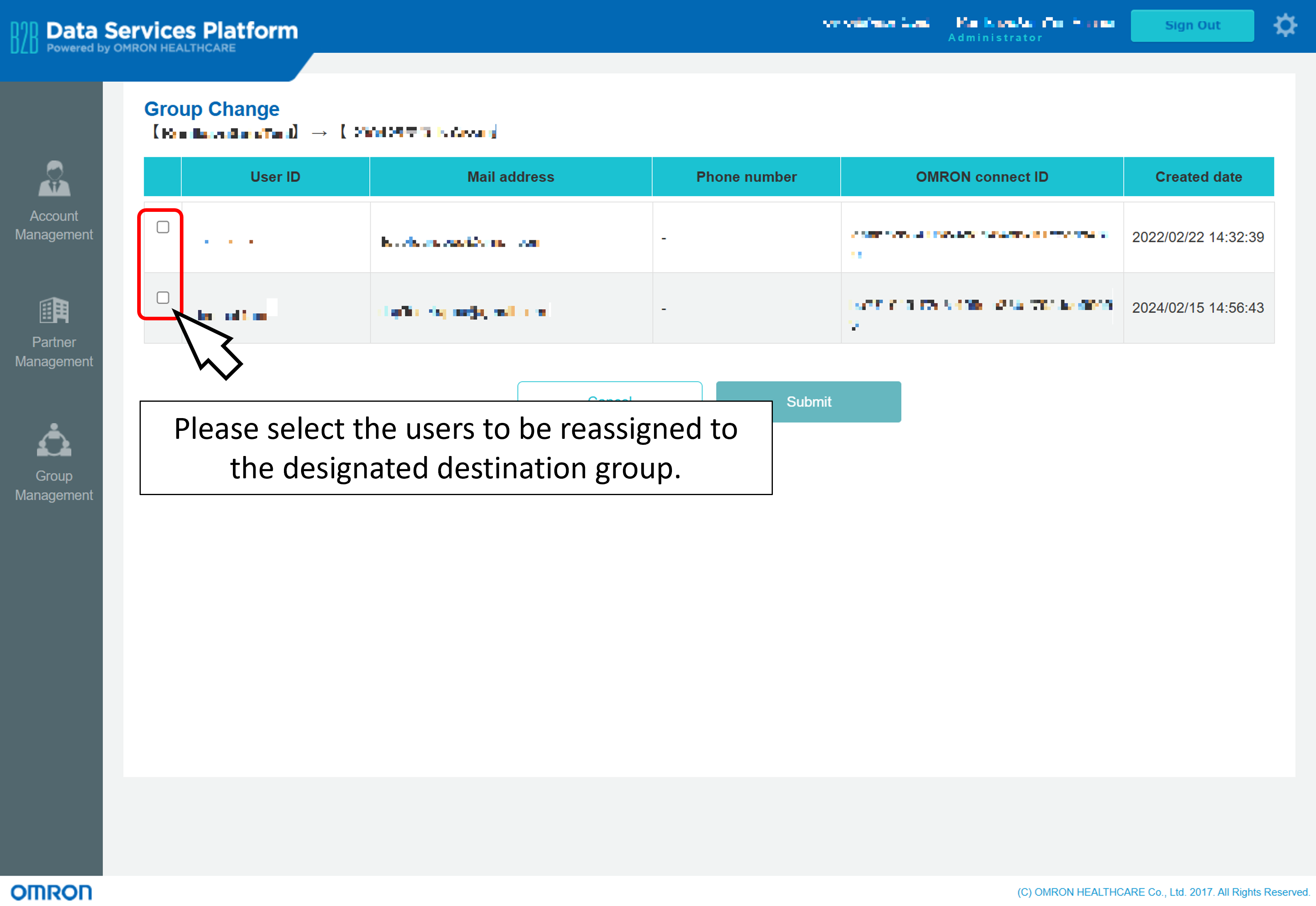
To reassign users who have already been registered, navigate to 'Change Group', select the desired destination group, and then choose either specific users or all users to proceed with the reassignment.
View the list of registered users
A list of users currently registered to the group will be displayed. Additionally, new users (participants) can be added from this interface.
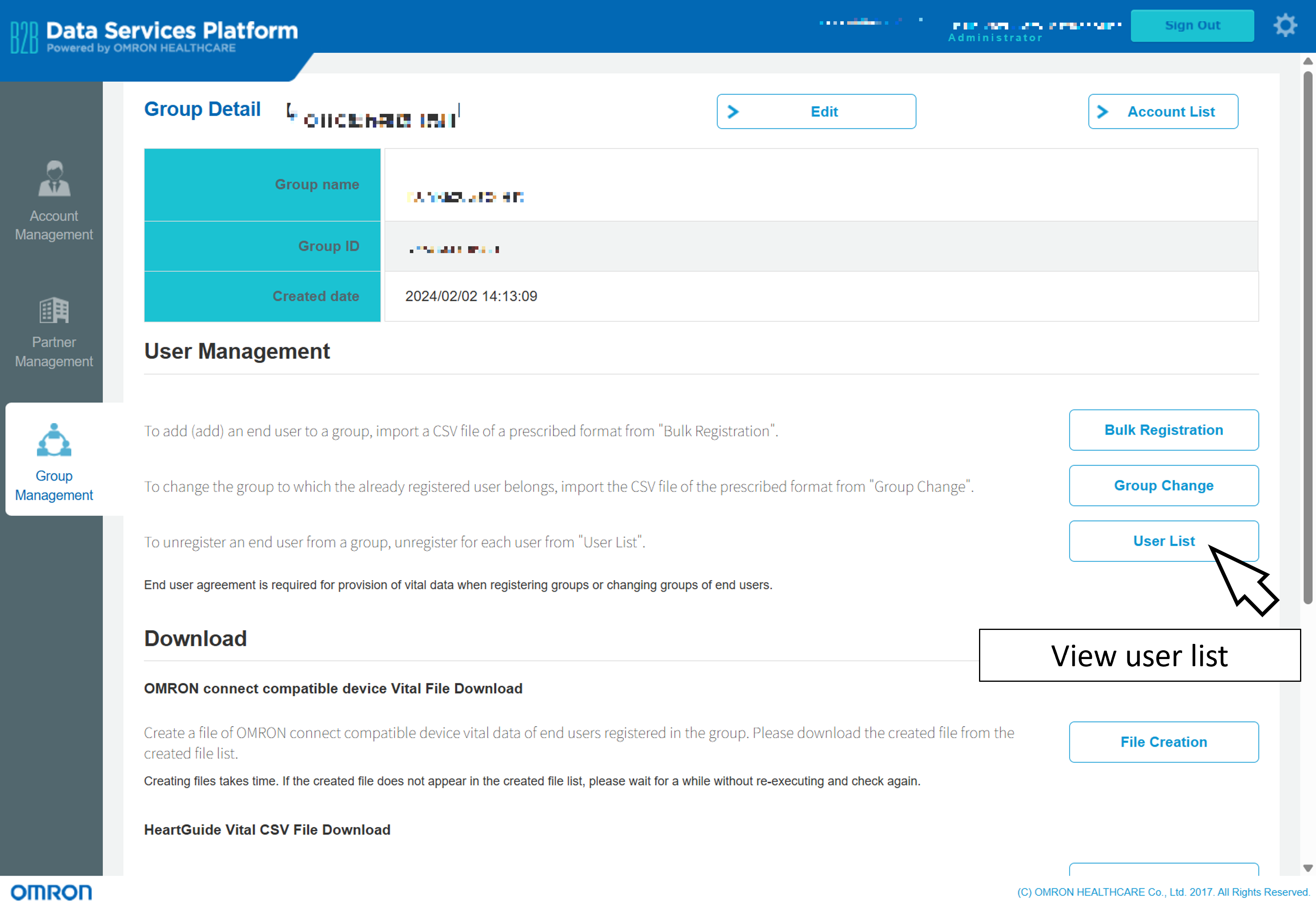
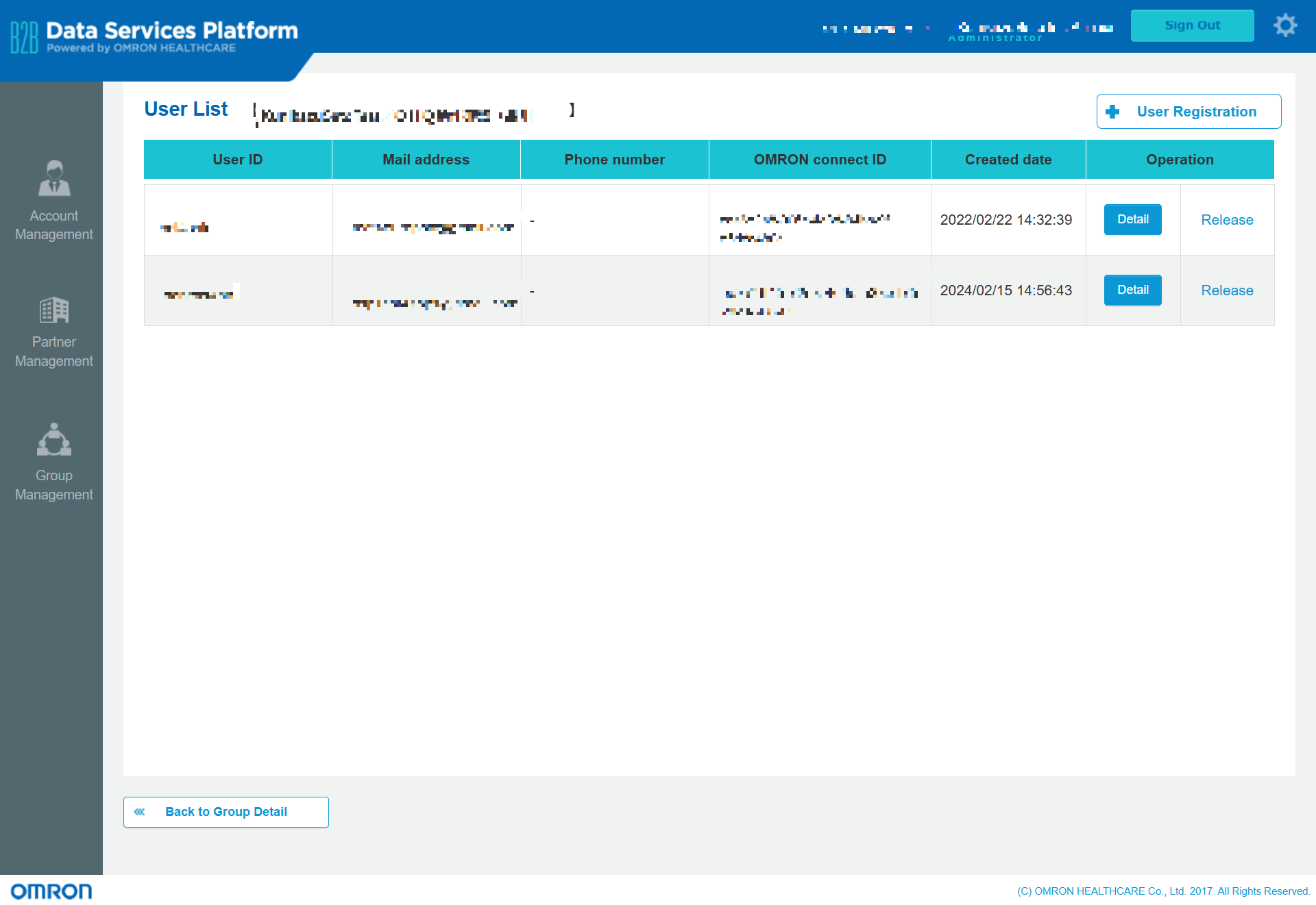
(When you register users (participants)) Click 'User Registration' button.
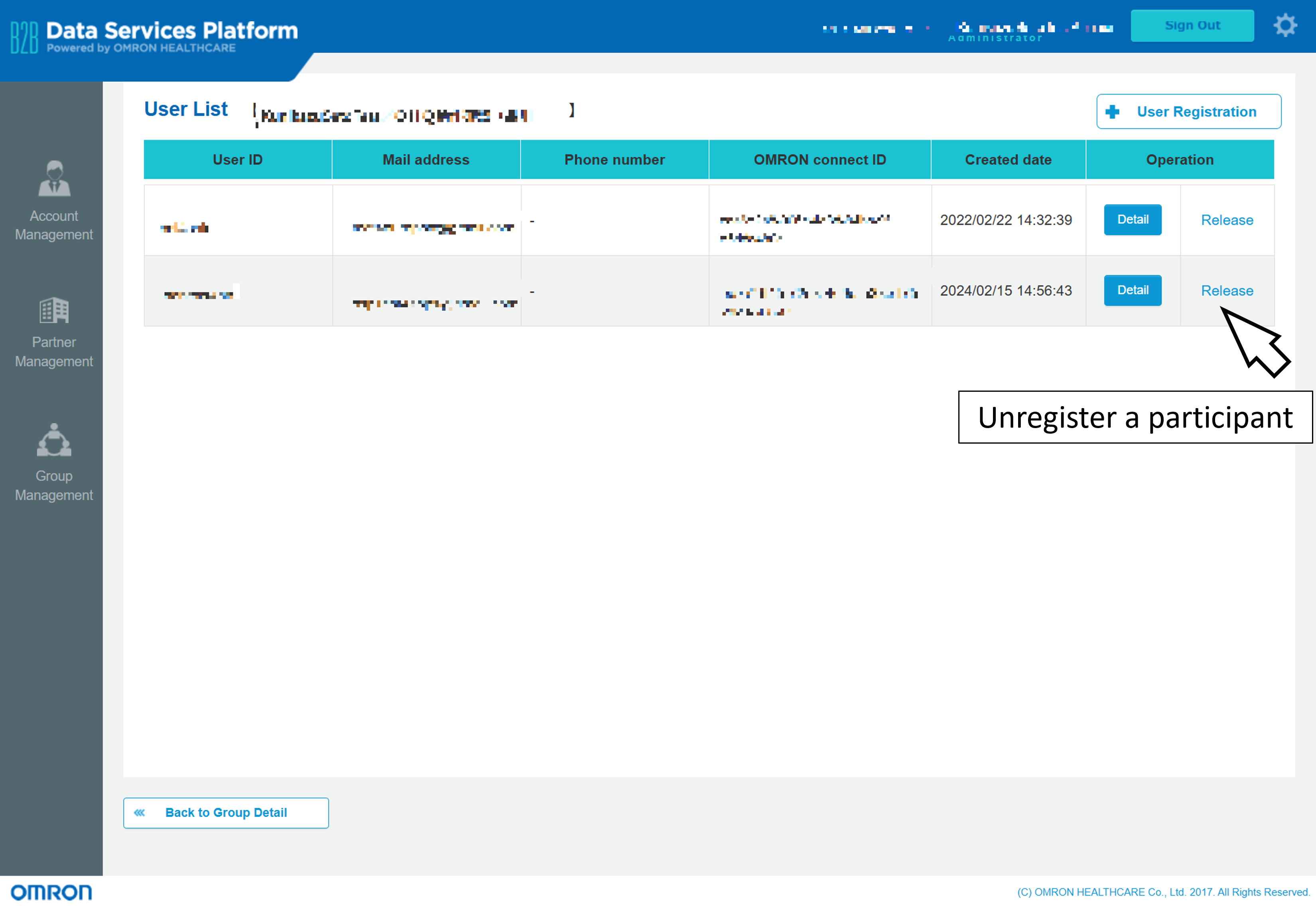
(When you unregister users (participants)) Click 'Release' button.
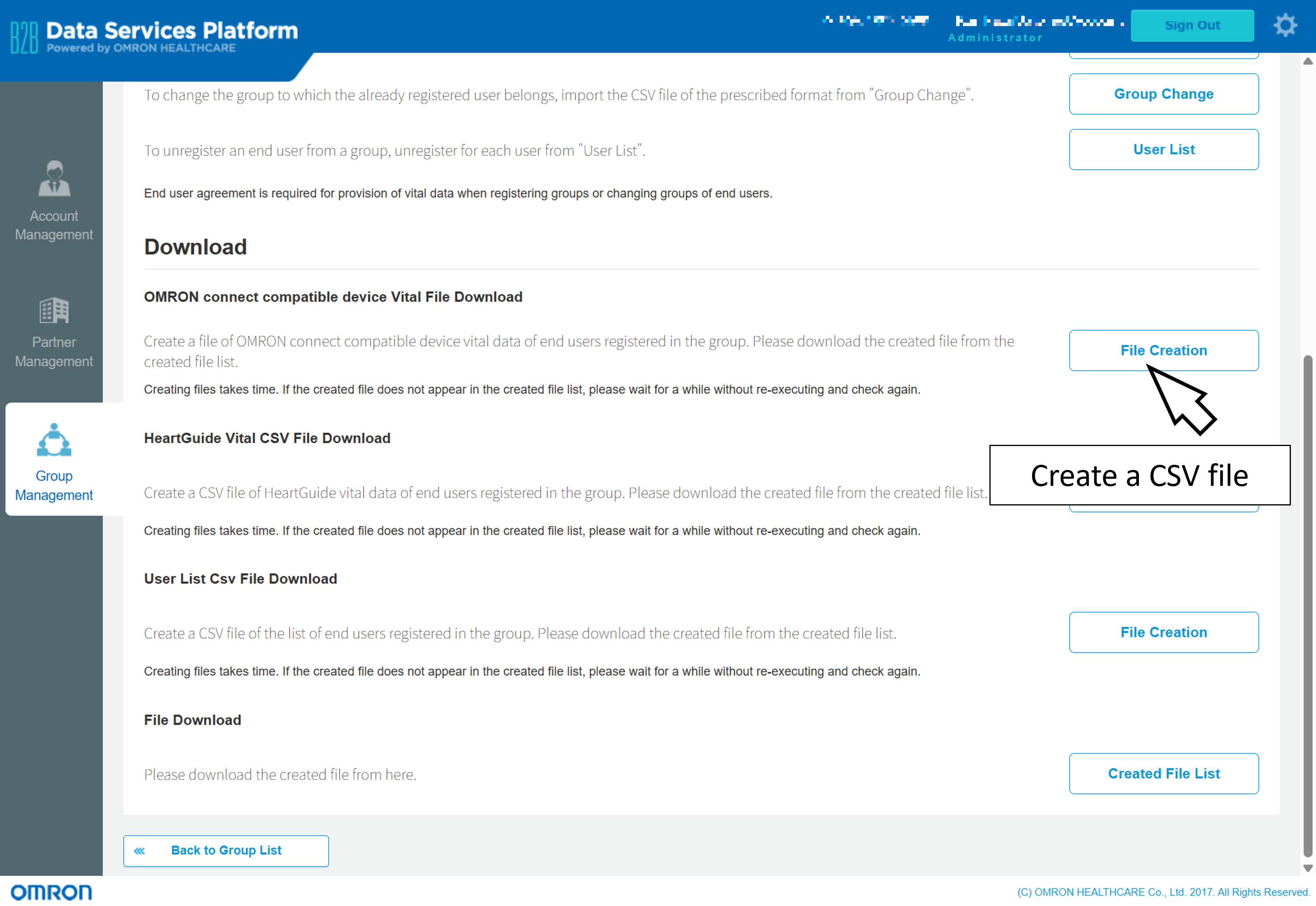
Download Vital Health Measurement File / User List File (CSV)
You can generate a CSV file containing user list and their vital health data measured by OMRON devices for users registered to the group. The generated CSV file can be downloaded from the 'File Download' section.
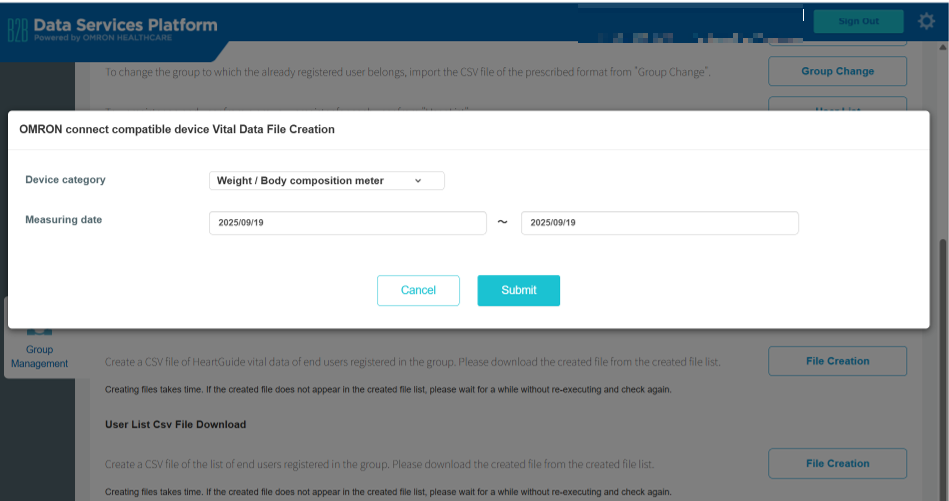
The vital health measurements included in the CSV file is as follows:
| Device Category | Health Data in Downloaded CSV File |
|---|---|
| Blood Pressure Monitor | OMRON connect ID, correctedDateTimeFlag, MeasureDate, Systolic, Diastolic, Unit, Pulse, IdentificationNumber, clientApplicationID, userObjectId, deleteFlag |

Example of CSV for Blood Pressure Monitor
| Device Category | Health Data in Downloaded CSV File |
|---|---|
| Weight/Body Composition Meter | OMRON connect ID, correctedDateTimeFlag, MeasureDate, Weight, Unit, BMI, BodyFat%, RestingMetabolism, BodyAge, VisceralFatLevel, SkeletalMuscle%, IdentificationNumber, clientApplicationID, userObjectId, deleteFlag |
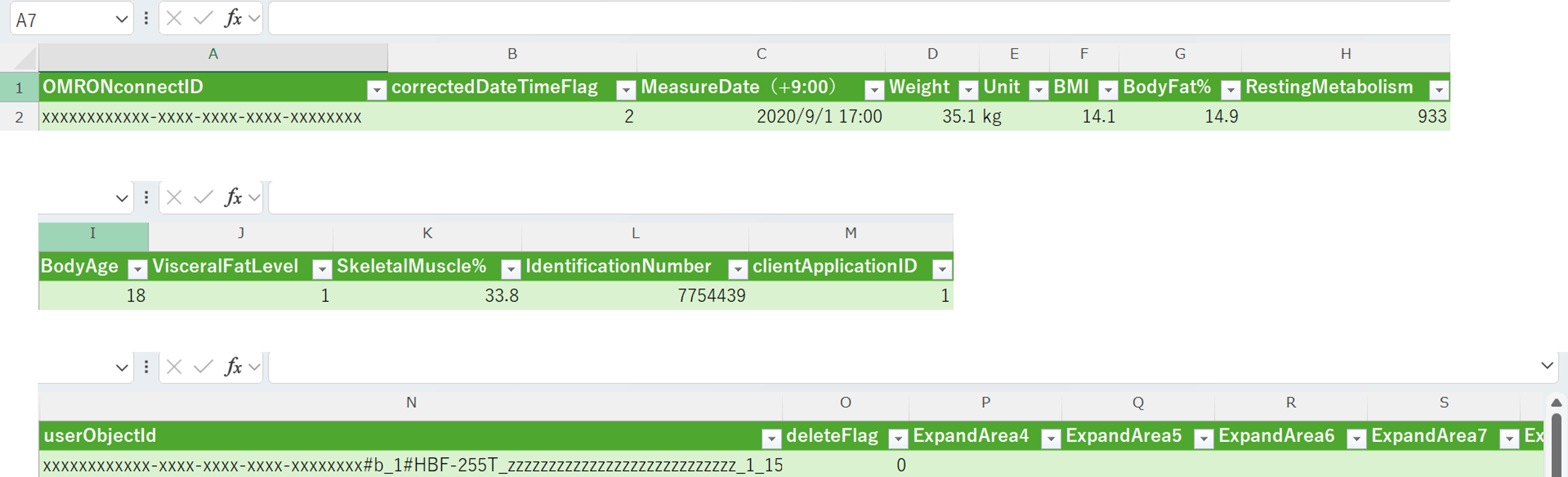
Example of CSV for Weight/Body Composition Meter
| Device Category | Health Data in Downloaded CSV File |
|---|---|
| Pedometer | OMRON connect ID, correctedDateTimeFlag, MeasureDate, Steps, Aerobics Steps, Ex Steps, Distance, Walking Time, Aerobics Walking Time, Walking Calories, Fat Burned, Ex Amount (Walking), Active Calories, Ex Amount (Total), Total Consumption Calories, IdentificationNumber, clientApplicationID, userObjectId, deleteFlag |
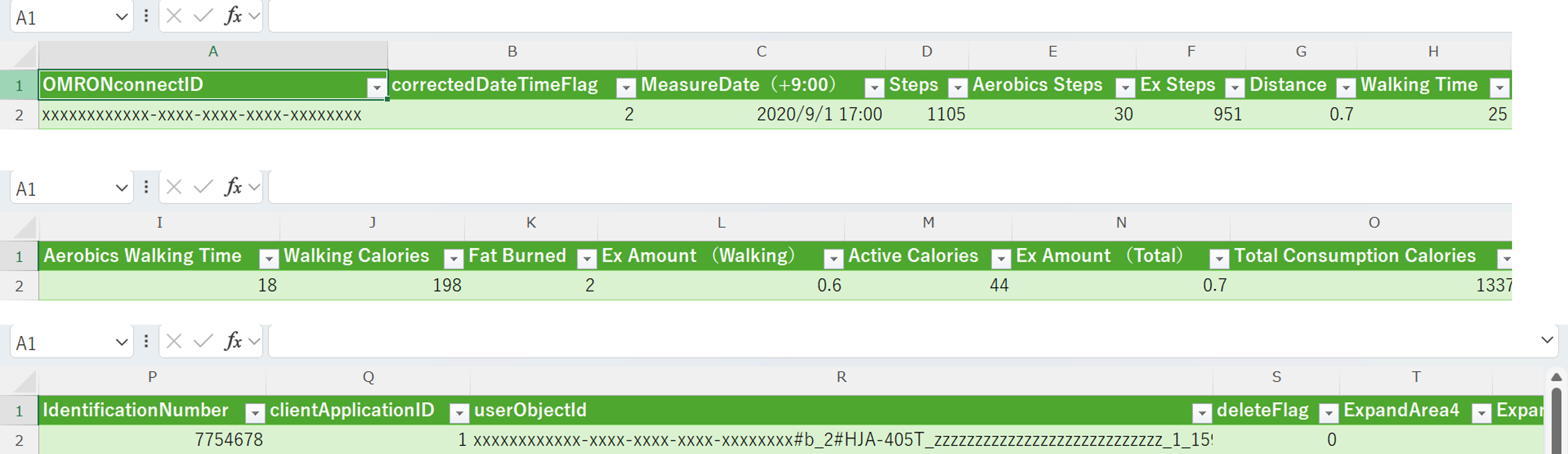
Example of CSV for Pedometer
| Device Category | Health Data in Downloaded CSV File |
|---|---|
| Sleep gauge | OMRON connect ID, correctedDateTimeFlag, MeasureDate, Bed time, Fall asleep time, Wake up time, Total time asleep(min), Sleep efficiency(%), Nocturnal awaking time(min), Sleep in/Waking up kind, Achievement level for goal of sleep hour, Goal of sleep time(min), IdentificationNumber, clientApplicationID |
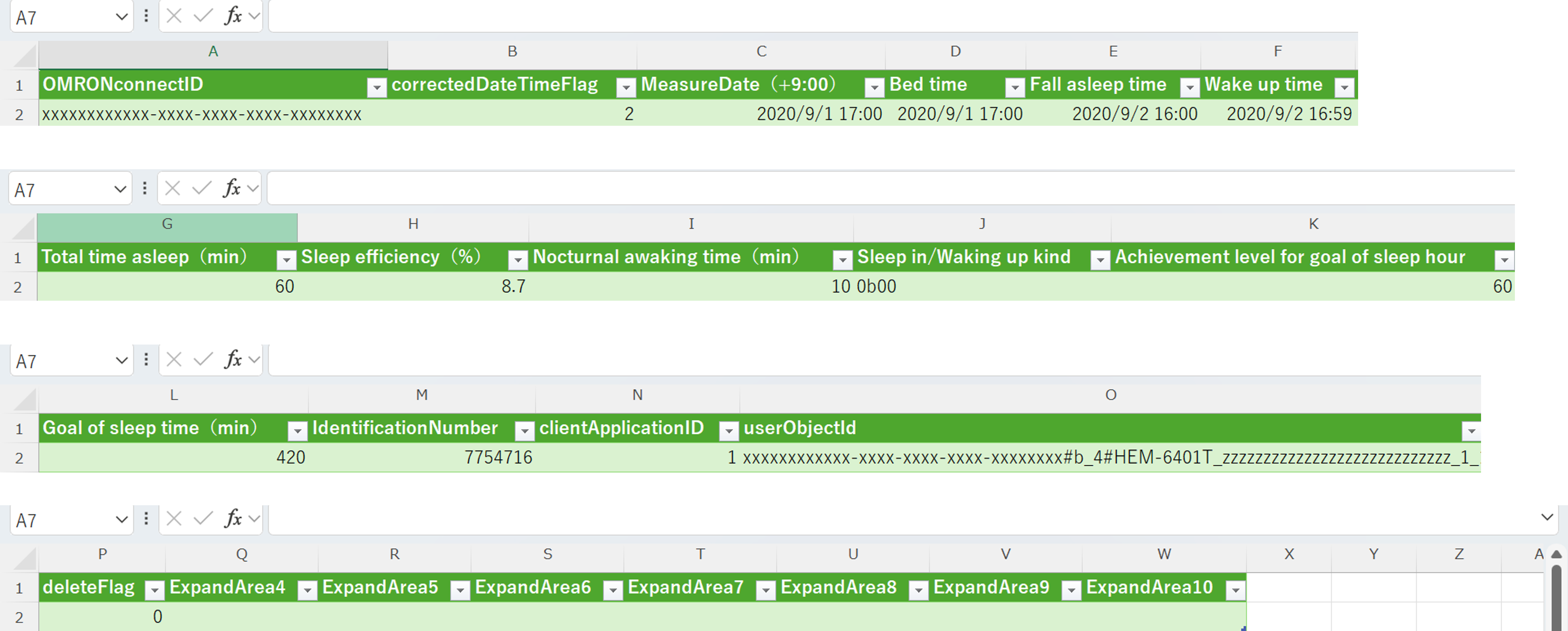
Example of CSV for Sleep Gauge
| Device Category | Health Data in Downloaded CSV File |
|---|---|
| Basal Thermometer | OMRON connect ID, correctedDateTimeFlag, MeasureDate, Basal body temperature measurement(prediction), Basal body temperature measurement(prediction)(Unit), Basal body temperature measurement(Actual measurement), Basal body temperature measurement(Actual measurement)(Unit), Basal body temperature prediction seconds, Basal body temperature prediction seconds(Unit), IdentificationNumber, clientApplicationID, userObjectId, deleteFlag |
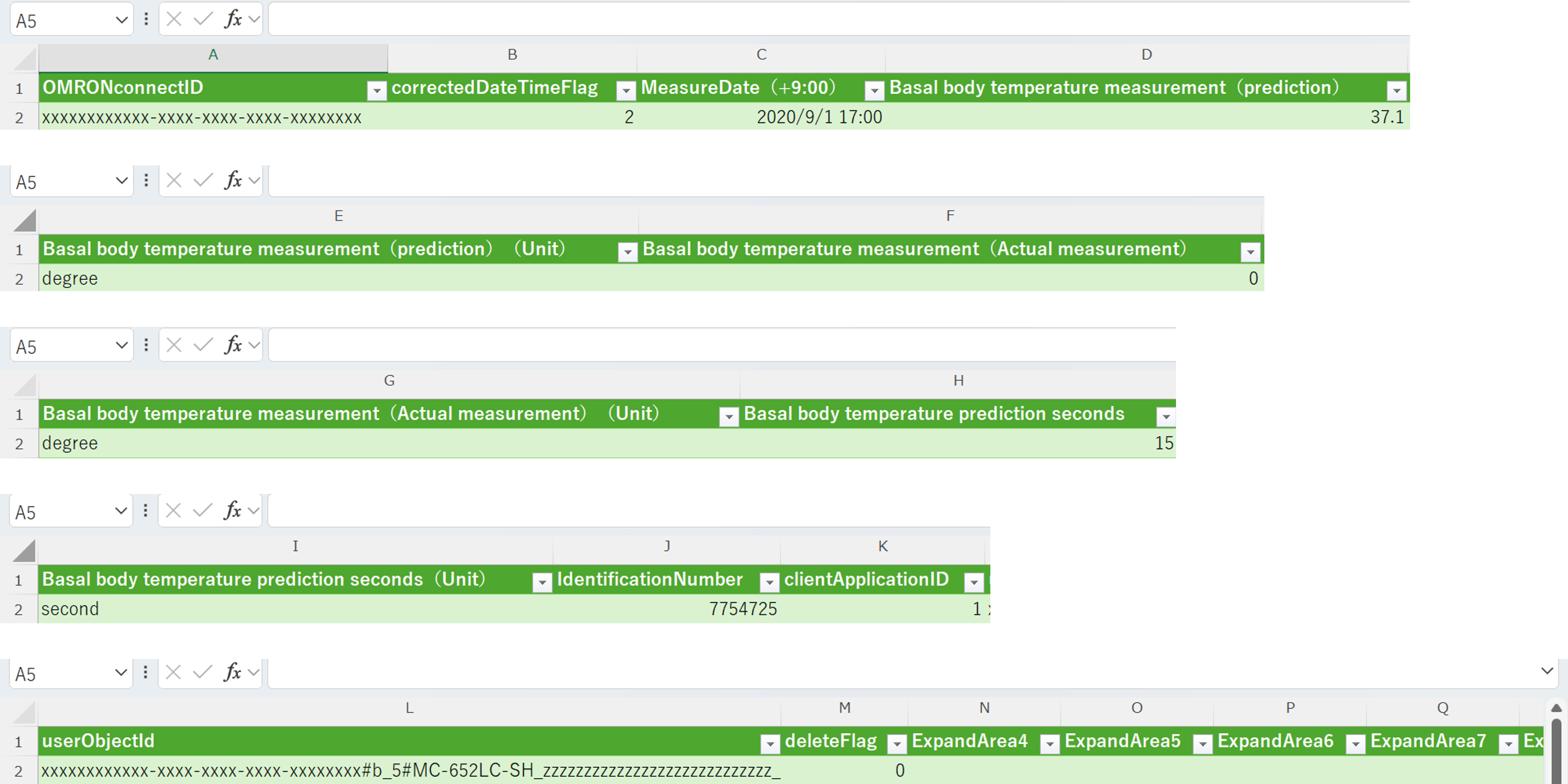
Example of CSV for Basal Thermometer
| Device Category | Health Data in Downloaded CSV File |
|---|---|
| Thermometer | OMRON connect ID, correctedDateTimeFlag, MeasureDate, Body temperature measurement(for display), Body temperature measurement(for display)(Unit), IdentificationNumber, clientApplicationID, Temperature Type, userObjectId, deleteFlag |
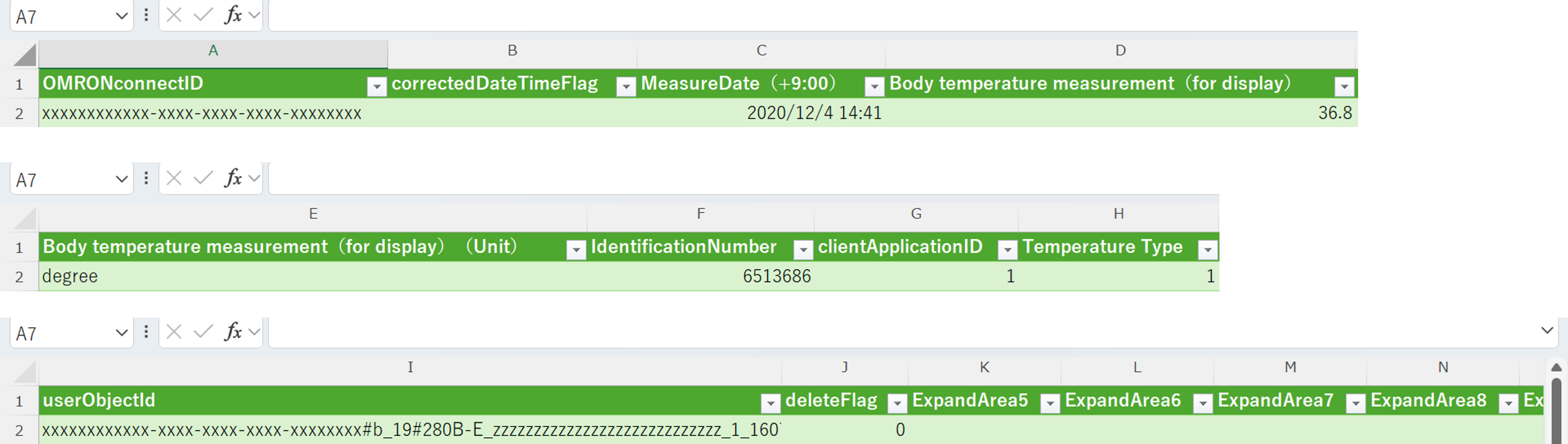
Example of CSV for Thermometer
| Device Category | Health Data in Downloaded CSV File |
|---|---|
| Pulse Oximeter | OMRON connect ID, correctedDateTimeFlag, MeasureDate, Oxygen saturation, Oxygen saturation(Unit), Pulse rate, Pulse rate(Unit), Pulse amplitude index, Pulse amplitude index(Unit), IdentificationNumber, clientApplicationID, userObjectId, deleteFlag |
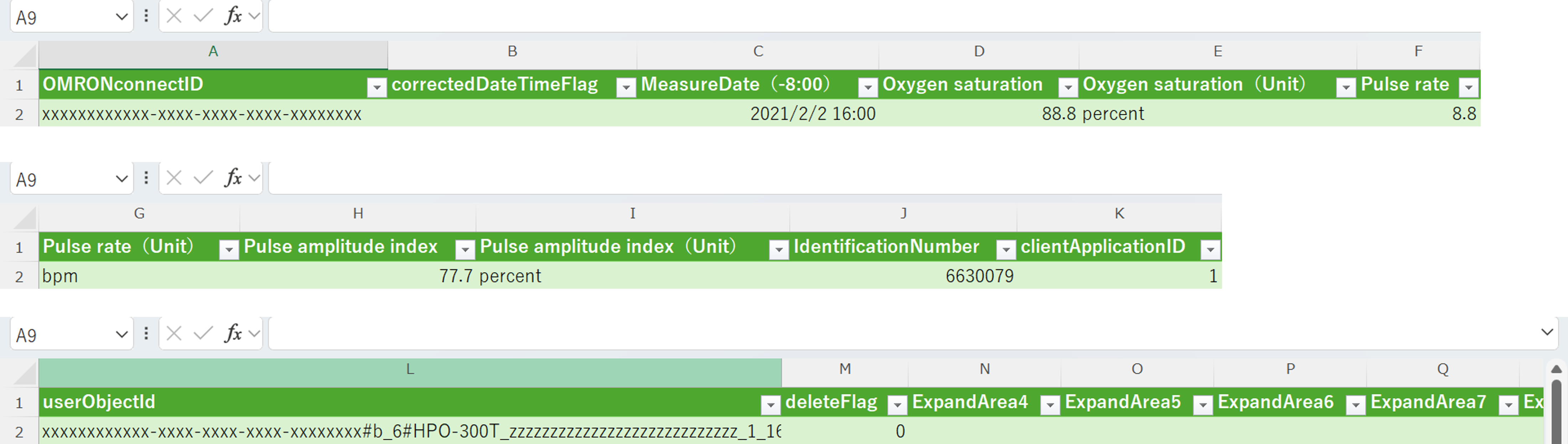
Example of CSV for Pulse Oximeter
| Device Category | Health Data in Downloaded CSV File |
|---|---|
| Electrocardiograph | OMRON connect ID, correctedDateTimeFlag, MeasureDate, Analysis result type, Analysis results, Lead number setting, Actual measurement time, Actual measurement time(Unit), deviceModel, Symptoms, Last exercise intensity, Memo(for electrocardiogram measurement), Average heart rate(for display), Average heart rate(for display)(Unit), IdentificationNumber, clientApplicationID, userObjectId, deleteFlag |
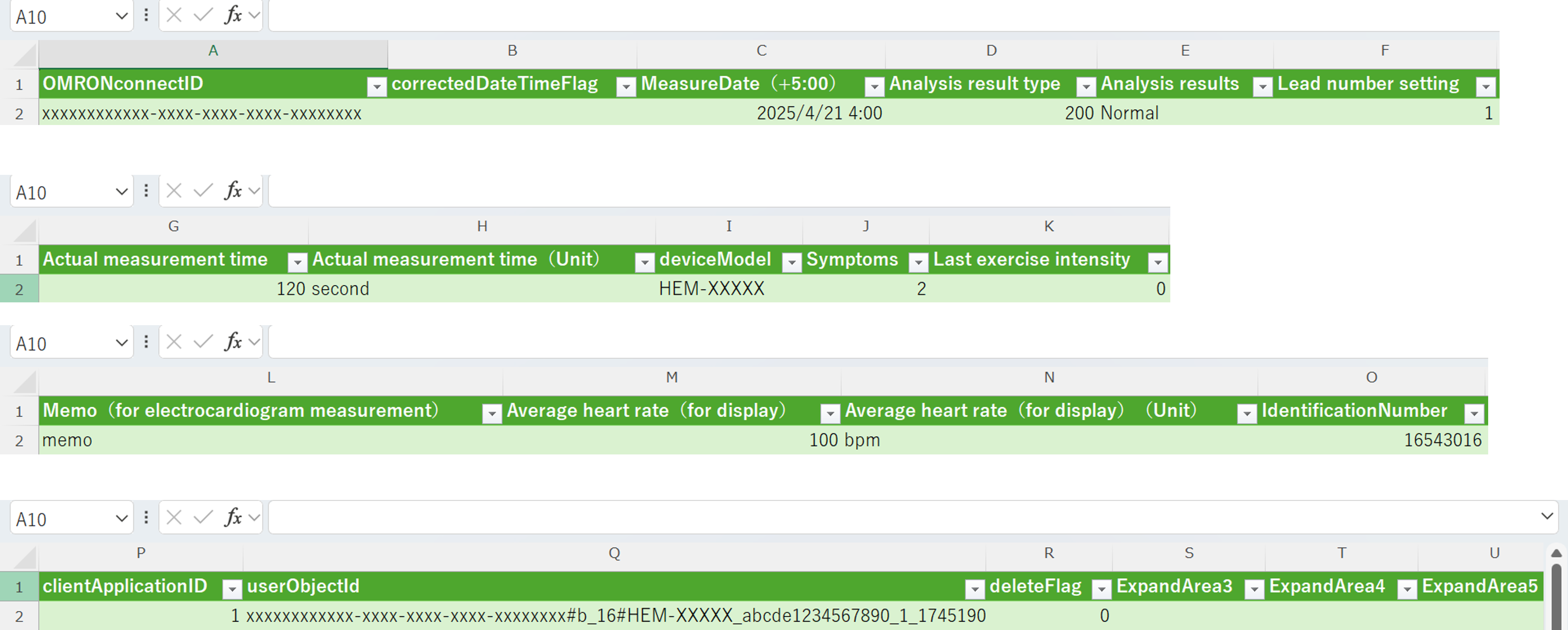
Example of CSV for ECG
| Device Category | Health Data in Downloaded CSV File |
|---|---|
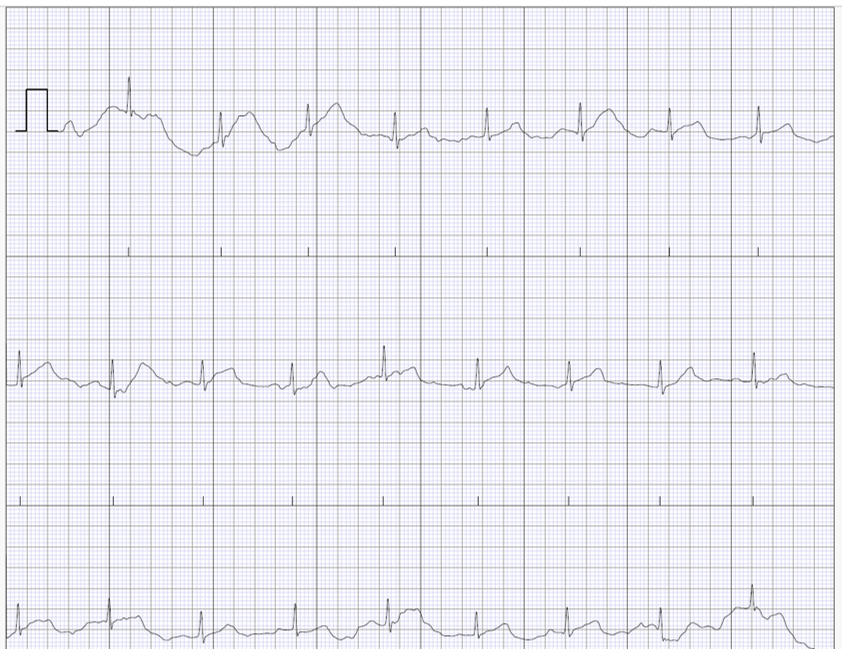
| Electrocardiograph (PDF) | Waveform graph |
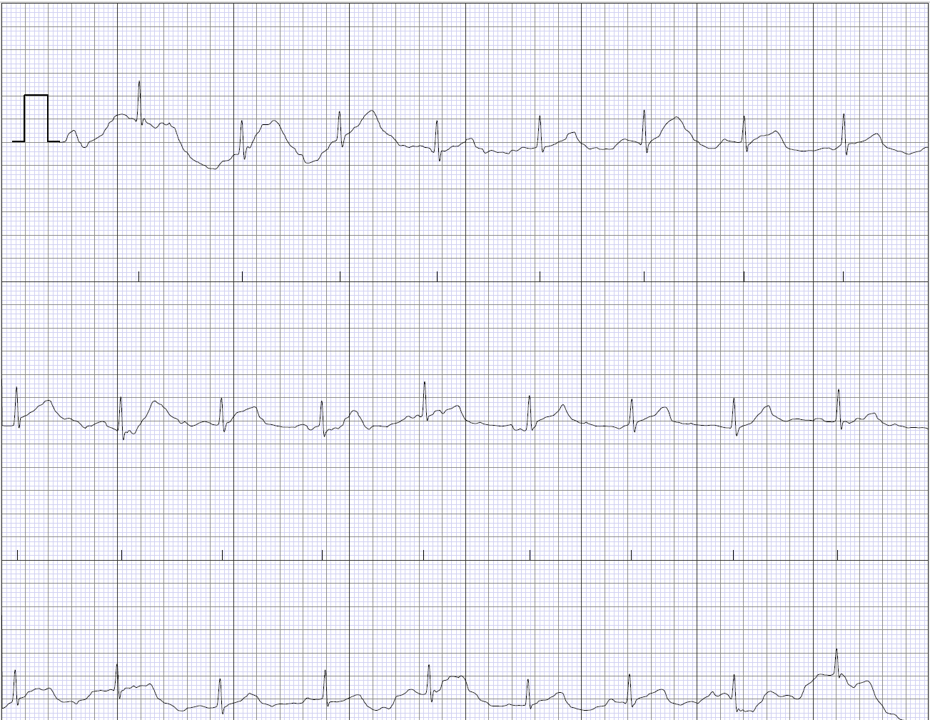
Example of PDF for ECG wave
Note: IdentificationNumber and clientApplicationID are unique numbers managed in DSP.
Note: Under the standard configuration, downloading electrocardiograph data (CSV) or ECG waveform graph (PDF) is not supported. If this functionality is required, please contact us in advance to make the necessary arrangements.
Note: The ‘ExpandArea’ field exists in each CSV example and is intended as a placeholder for future field additions.
About Electrocardiograph Downloadable from the Admin Portal
There are two types of data measured by the electrocardiograph: ECG data and ECG waveform data. The former is in JSON format; for details, please refer to the supported device page. The latter consists of plotted ECG waveform data, provided in two ATC file formats. Both types of data can be obtained via API or SFTP. However, the ATC format is a proprietary specification of AliveCor. DSP also offers a service that converts ATC files into PDFs for your use. The PDFs are generated based on ATC files (_enhanced) that have undergone digital filtering to produce smooth waveform data.
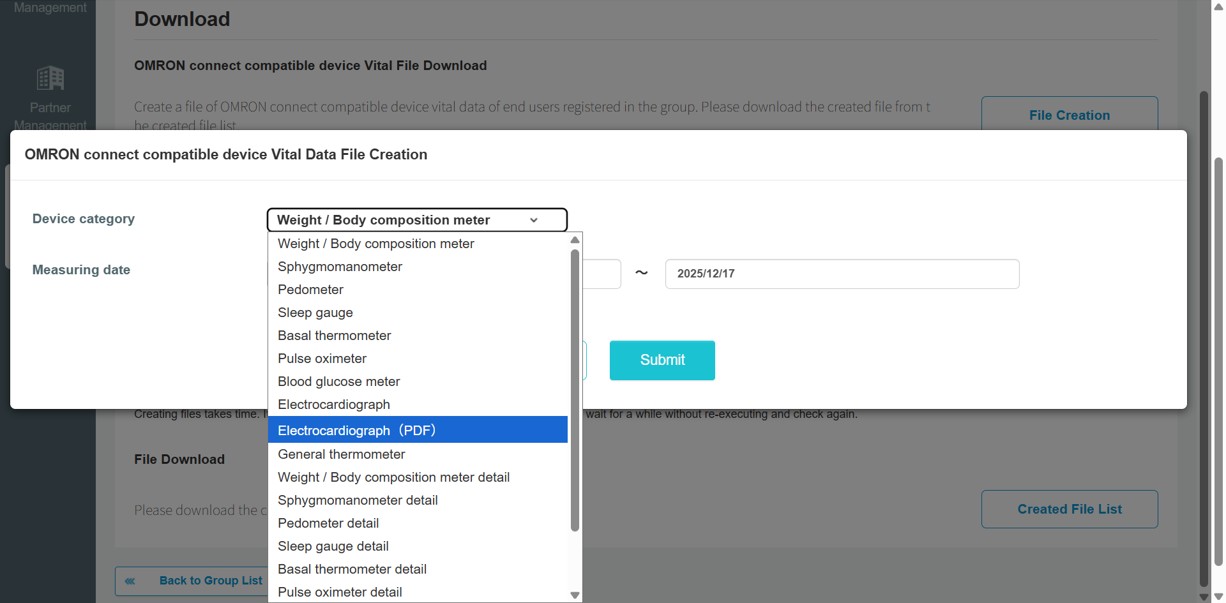
To download ECG data, select 'Electrocardiograph' in the device category on the CSV file creation screen.
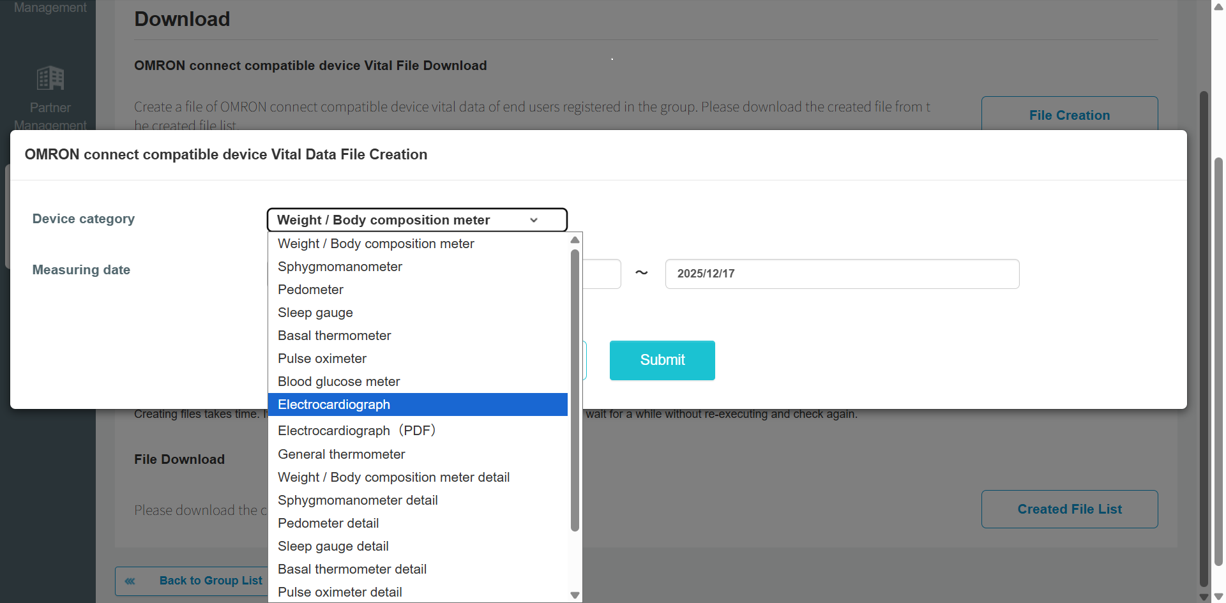
To download ECG waveform data, select 'Electrocardiograph (PDF)' in the device category.
Sample:
Assuming a large number of target files, the ZIP file will have the following structure.
Approximately 10,000 items can be stored per folder.
001/
xxxxx_1.pdf
yyyyy_2.pdf
002/
aaaaa_3.pdf
bbbbb_4.pdf
conversion_error.txt (Only if there are files that failed to be converted to PDF)
Note: The file name is '[username][measureDeviceDateFrom(YYYYMMDDHHMMSSsss)][analysis result flag (3 digits)][suffix number].pdf'. If the analysis result is two digits or less, a 0 will be added to the beginning to make it three digits. (For example, if the analysis result flag is 20, it will become '020'.)
If there is no analysis result or the value is invalid (-2147483648), the format will be '[username][measureDeviceDateFrom(YYYYMMDDHHMMSSsss)]_[suffix number].pdf'.
The suffix numbers are consecutive within the zip, but numbers may be skipped depending on the state of the atc file. For information on analysis result flags, please refer to supported device and integrated data page.
If the conversion to PDF fails, a text file (conversion_error.txt) listing the failed PDF file names will be included in the zip file.
If there are no failed files, no text files will be stored.
Updated 4 months ago